---
title: NuShell FFMpeg Utils
date: 2025-09-05
excerpt: 记录使用Nushell对媒体资源进行批量压缩,释放Onedrive空间
tags:
- Terminal
- Shell
- ffmpeg
- Workflow
- Nushell
- Onedrive
- Performance
cover: https://assets.vluv.space/nu_ffmpeg.webp
updated: 2026-05-23 15:36:36
i18n:
en: /en/nu_ffmpeg
translation: 2
---
## Intro
个人经常将 Onedrive 收藏的 `h264` 视频转码为 `vp9/av1/hevc` 等格式,理想情况下能节省 50%的体积(没统计,纯靠记忆)。工作一般包含下面三个任务:
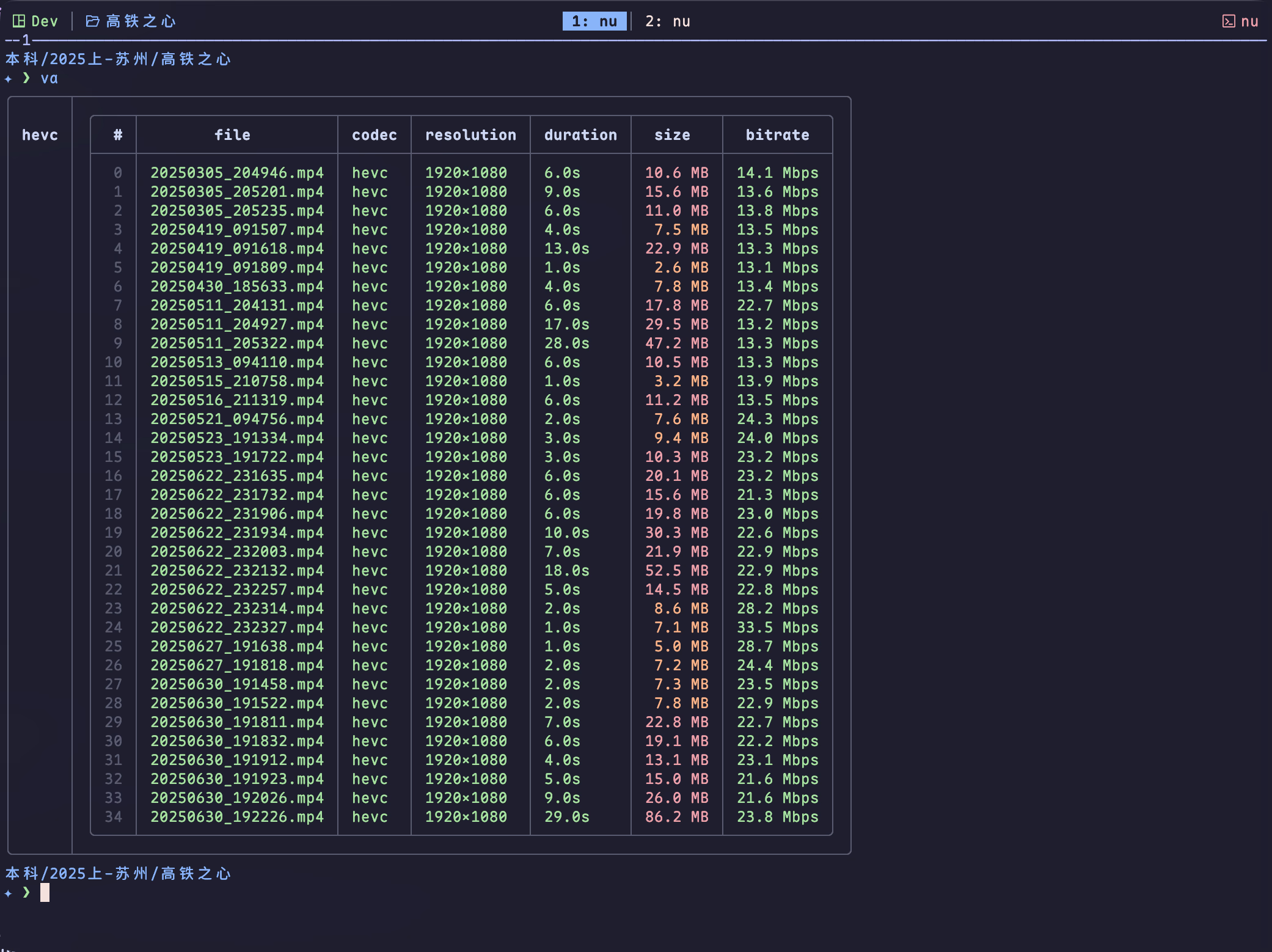
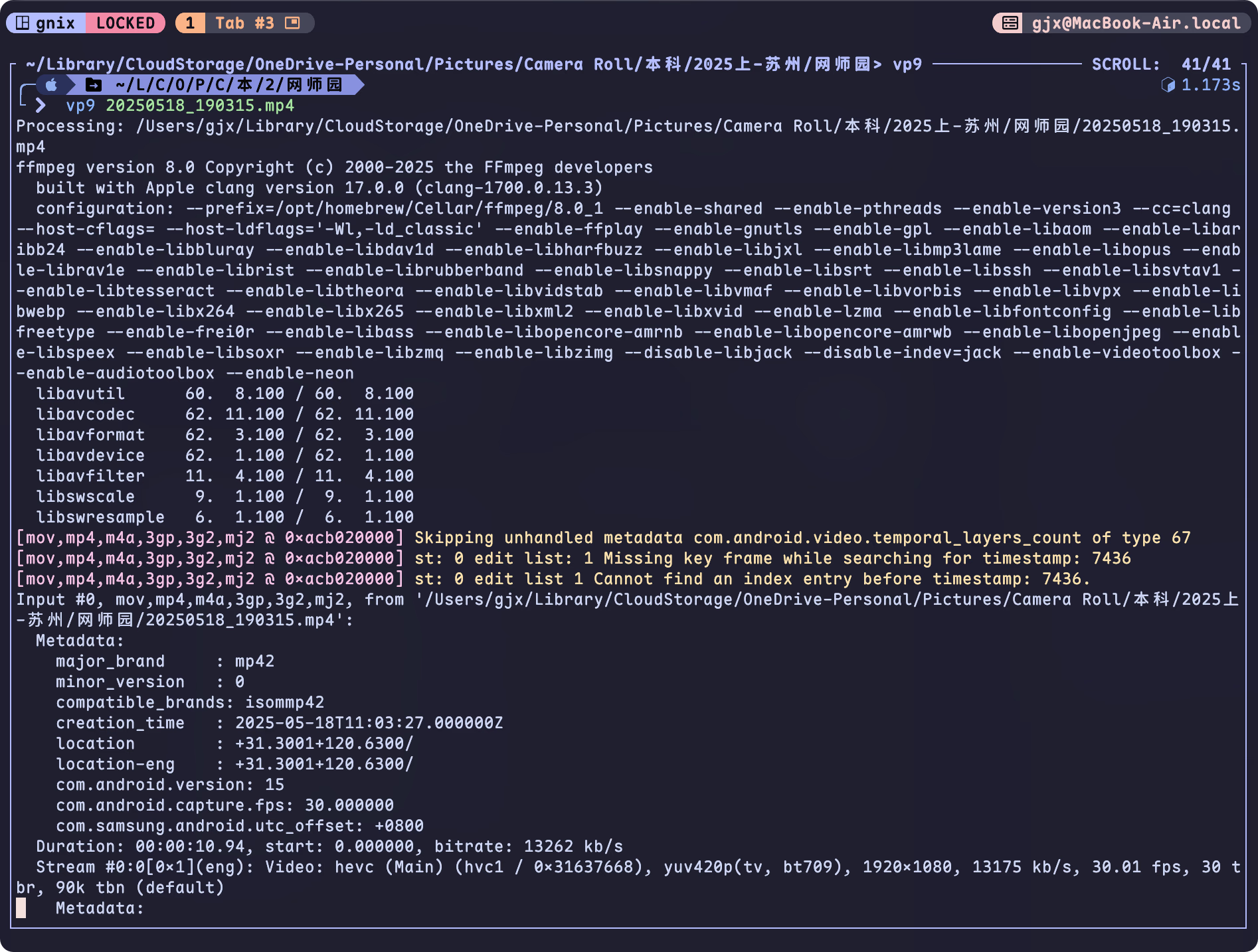
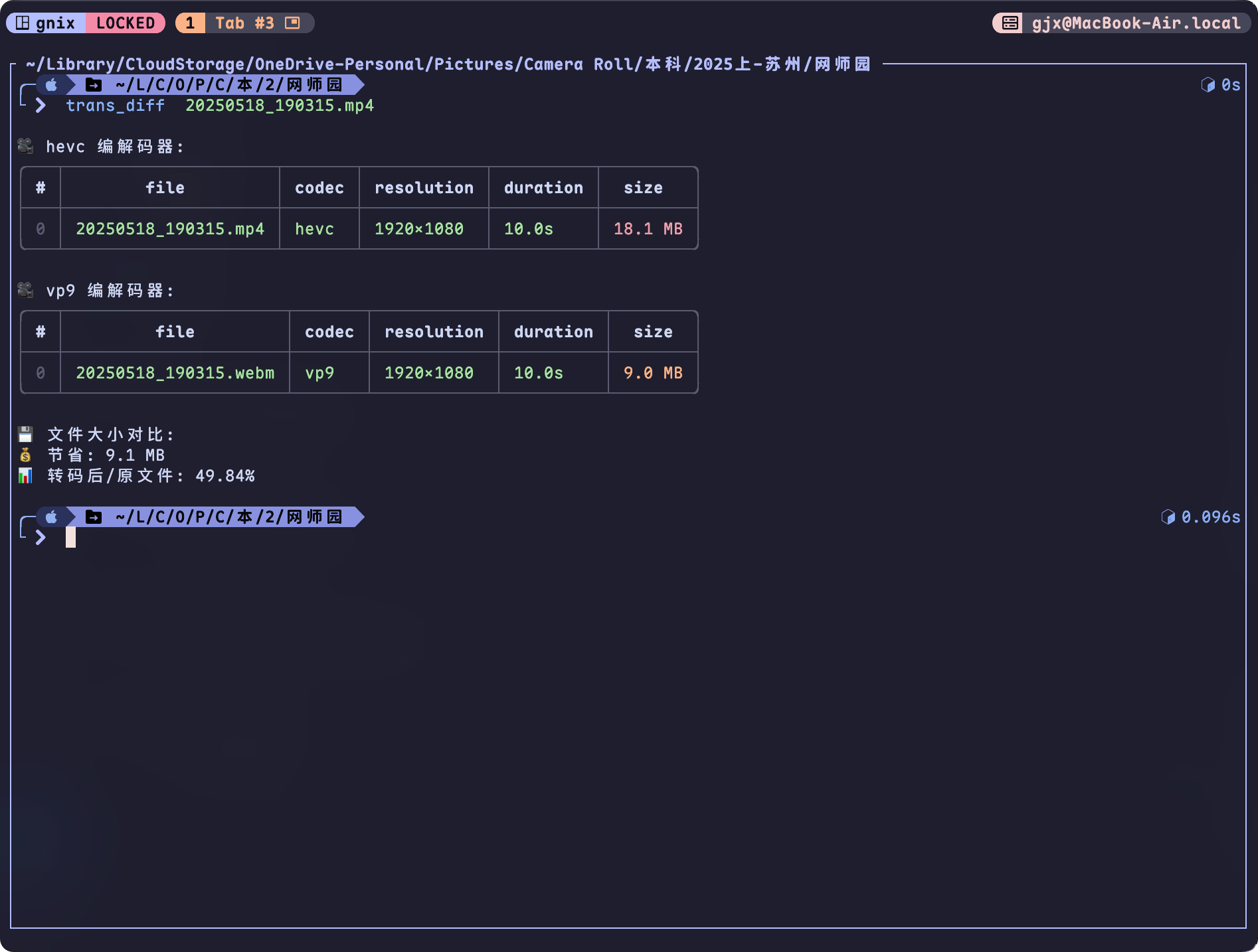
人工批量操作耗时费力,因此编写了部分 Nushell 函数,利用 Nushell 的并行任务(`par-each`)特性,对视频进行批量的处理。例如转码是相当耗时的操作,那么就可以在睡前执行 `{shell} caffeinate -i nu --config $nu.config-path -c "vp9 ./"`,等第二天醒了视频基本就压缩好了。
### Quick Installation
下载 `ffmpeg.nu`[^1],在 `config.nu` 中 `source /path/to/ffmpeg.nu`
```nu
cd $nu.default-config-dir
wget -O ./ffmpeg.nu https://raw.githubusercontent.com/Efterklang/dotfiles/refs/heads/main/shells/nushell/aliases/alias.nu
echo 'source ./ffmpeg.nu' | save --append $nu.config-path
```
## Required Knowledge
### Nushell Features
- [Operators | Nushell#spread-operator](https://www.nushell.sh/book/operators.html#spread-operator) 用于处理可变参数,允许函数接收多个输入路径
- [Closure | Nushell](https://www.nushell.sh/lang-guide/chapters/types/basic_types/closure.html#closure) 可类比其他语言中的匿名函数,可作为参数传递给 `each` 或 `par-each`
- [each and par-each | Nushell](https://www.nushell.sh/lang-guide/chapters/filters/each-par-each.html) 迭代处理数据,其中 `par-each` 支持并行执行,充分利用多核 CPU,加快任务处理速度
### FFMPEG
- `ffprobe` 用于查看媒体文件的元数据(如编码格式、分辨率、时长等),一般跟 `ffmpeg` 捆绑下载的
- [ffmpeg](https://ffmpeg.org) 强大的音视频处理工具,支持转码、格式转换等操作。一行 `{shell} ffmpeg -i input.mp4 -vcodec vp9 output.mp4` 即可将视频转码为 VP9;`ffmpeg` 支持更精细的参数调整,比如视频质量这些,这里就不介绍了
### MISC
- 容器格式 (mp4, webm etc.)
- Encoding & Decoding
- Software Encoding & Software Decoding:依赖 CPU 处理,兼容性好但速度较慢
- Hardware Encoding & Hardware Decoding:利用 GPU 加速,效率更高(需硬件支持)
选择 Software Encoding 或 Hardware Encoding 看个人权衡,网上资料总结来看,Hardware Encoding 速度更快,但质量相对差一点,要保证质量不损失的话需要适当调整 `crf,q:v` 等参数。
可以执行 `{shell} ffmpeg -hwaccels` 命令查看 PC 支持的硬件加速方式。也可参考下面链接,查看厂商对硬件编码的支持情况
- Nvidia (包含最新的 Nvidia 产品): [Video Encode and Decode GPU Support Matrix | NVIDIA Developer](https://developer.nvidia.com/video-encode-and-decode-gpu-support-matrix-new)
- Intel, Nvidia, Amd (截止 2023 年 6 月 8 日) [三大显卡厂商(Intel NVIDIA AMD)产品对硬件解码编码支持程度列表 - 重庆 Debug - 博客园](https://www.cnblogs.com/hyb1/p/17466965.html)
- Apple Silicon : M3 芯片对硬件加速解码的支持情况如下,里面 hevc 压缩率还可以,ffmpeg 相关参数设置可参考 [macos - Optimally using hevc_videotoolbox and ffmpeg on OSX - Stack Overflow](https://stackoverflow.com/questions/64924728/optimally-using-hevc-videotoolbox-and-ffmpeg-on-osx)
```shell
$ ffmpeg -hide_banner -encoders | grep videotoolbox
V....D h264_videotoolbox VideoToolbox H.264 Encoder (codec h264)
V....D hevc_videotoolbox VideoToolbox H.265 Encoder (codec hevc)
V....D prores_videotoolbox VideoToolbox ProRes Encoder (codec prores
```
## 使用场景
在处理媒体文件前,需要先定位目标文件。编写了一个 private helper function,通过 spread operator `...` 支持传入多个路径(文件或目录),并筛选出 `.mp4` 或 `.webm` 格式的文件:
```nu
def _find_media_paths [...paths: string] {
let ext_pattern = '\.(mp4|mov|webm)$'
# 如果没有指定路径,则默认使用当前目录
let files = if ($paths | is-empty) {
ls . | where name =~ $ext_pattern
} else { # 如果指定了路径,则迭代查找这些路径下的文件
$paths | each {|p|
let expanded = ($p | path expand)
ls $expanded | where name =~ $ext_pattern
} | flatten
}
return $files
}
```
### 分析视频编码分布
个人云盘中包含 `vp9, av1, h264` 编码的视频,使用`vcodec-analysis`函数统计一批视频的编码格式、分辨率等信息。
代码里使用 `par-each` 并行调用 `ffprobe` 提取信息,并按编码格式分组汇总。经不严谨测试,查看 32 个视频编码分布情况,使用 `each` 和 `par-each` 的时间分别为 `1.839s` 和 `0.439s`
```nu
def _format_duration [seconds: string] {
let sec = ($seconds | into int)
let hours = ($sec / 3600 | into int) # 计算小时数
let minutes = (($sec mod 3600) / 60 | into int) # 计算分钟数
let seconds = ($sec mod 60) # 计算剩余秒数
mut result = []
# 只有当值大于0时才添加到结果中
if $hours > 0 { $result = ($result | append $'($hours)h') }
if $minutes > 0 { $result = ($result | append $'($minutes)m') }
if $seconds > 0 { $result = ($result | append $'($seconds | math round -p 2)s') }
$result | str join ' ' # 用空格连接各部分
}
def _format_bitrate [bitrate: int] {
# 将比特率转换为合适的单位
if $bitrate >= 1000000 {
let mbps = ($bitrate / 1000000.0 | math round -p 1)
$'($mbps) Mbps'
} else if $bitrate >= 1000 {
let kbps = ($bitrate / 1000.0 | math round -p 1)
$'($kbps) kbps'
} else {
$'($bitrate) bps'
}
}
def _get_video_info [file: string] {
# 使用 ffprobe 获取视频流和格式信息
let ffprobe_output = (ffprobe -v error -select_streams v:0
-show_entries stream=codec_name,width,height,bit_rate:format=duration,bit_rate
-of json $file | from json)
let stream = ($ffprobe_output.streams | first) # 获取第一个视频流
let format = ($ffprobe_output.format) # 获取格式信息
# 格式化时长,如果失败则显示 N/A
let duration = try {
_format_duration $format.duration
} catch {
"N/A"
}
# 格式化比特率,优先使用流的比特率,其次使用格式的比特率
let bitrate = try {
let rate = if ($stream.bit_rate | is-not-empty) {
$stream.bit_rate | into int
} else if ($format.bit_rate | is-not-empty) {
$format.bit_rate | into int
} else {
null
}
if ($rate | is-not-empty) {
_format_bitrate $rate
} else {
"N/A"
}
} catch {
"N/A"
}
# 返回视频信息结构
return {
codec: ($stream.codec_name)
width: ($stream.width)
height: ($stream.height)
duration: $duration
bitrate: $bitrate
}
}
def vcodec-analysis [...paths: string] {
let files = (_find_media_paths ...$paths)
# 并行执行 _get_video_info 获取信息
$files | par-each {|file|
let video_info = (_get_video_info $file.name)
{
file: ($file.name | path basename)
codec: $video_info.codec
resolution: $'($video_info.width)x($video_info.height)'
duration: $video_info.duration
size: $file.size
bitrate: $video_info.bitrate
}
}
| group-by codec # 按编解码器类型分组
}
alias va = vcodec-analysis
```
```nu
# 查看当前目录下av1编码的视频元信息
va | select av1
╭──────┬────────────────────────────────────────────────────────────╮
│ │ ╭───┬────────┬───────┬────────────┬───────────┬──────────╮ │
│ vp9 │ │ # │ file │ codec │ resolution │ duration │ size │ │
│ │ ├───┼────────┼───────┼────────────┼───────────┼──────────┤ │
│ │ │ 0 │ 1.webm │ vp9 │ 1920x1080 │ 29m 13.0s │ 280.9 MB │ │
│ │ │ 1 │ 2.webm │ vp9 │ 1920x1080 │ 29m 41.0s │ 257.9 MB │ │
│ │ │ 2 │ 3.webm │ vp9 │ 1920x1080 │ 29m 49.0s │ 219.4 MB │ │
│ │ ╰───┴────────┴───────┴────────────┴───────────┴──────────╯ │
│ │ ╭───┬────────┬───────┬────────────┬───────────┬──────────╮ │
│ h264 │ │ # │ file │ codec │ resolution │ duration │ size │ │
│ │ ├───┼────────┼───────┼────────────┼───────────┼──────────┤ │
│ │ │ 0 │ 11.mp4 │ h264 │ 1920x1080 │ 29m 42.0s │ 786.5 MB │ │
│ │ ╰───┴────────┴───────┴────────────┴───────────┴──────────╯ │
╰──────┴────────────────────────────────────────────────────────────╯
# 查看 test.mp4 的视频元信息
$ va ./test.mp4
╭──────┬────────────────────────────────────────────────────────────╮
│ │ ╭───┬────────┬───────┬────────────┬───────────┬──────────╮ │
│ h264 │ │ # │ file │ codec │ resolution │ duration │ size │ │
│ │ ├───┼────────┼───────┼────────────┼───────────┼──────────┤ │
│ │ │ 0 │ 11.mp4 │ h264 │ 1920x1080 │ 29m 42.0s │ 786.5 MB │ │
│ │ ╰───┴────────┴───────┴────────────┴───────────┴──────────╯ │
╰──────┴────────────────────────────────────────────────────────────╯
# 导出成json格式, 也可使用to md/csv/html etc.
$ va | to json
{
"vp9": [
{
"file": "1.webm",
"codec": "vp9",
"resolution": "1920x1080",
"duration": "29m 13.0s",
"size": 280957470
},
{
"file": "2.webm",
"codec": "vp9",
"resolution": "1920x1080",
"duration": "29m 41.0s",
"size": 257923553
},
{
"file": "3.webm",
"codec": "vp9",
"resolution": "1920x1080",
"duration": "29m 49.0s",
"size": 219479954
}
],
"h264": [
{
"file": "11.mp4",
"codec": "h264",
"resolution": "1920x1080",
"duration": "29m 42.0s",
"size": 786576948
}
]
}
```
### 批量转码
`vp9` , `hevc`, `av1` 函数分别用于将视频批量转码为 VP9,HEVC (H.265) 或 AV1 格式。视频转码是耗时操作,这里利用 `par-each` 并行处理可充分利用多核 CPU;转码后的文件存放路径为 `~/Downloads/ffmpeg_out` 目录下,默认用 `webm` 作为容器格式,注意 HEVC 要用 `mp4` 作为容器格式。
| Target Codec | Encoding Method |
| ------------ | ------------------------ |
| vp9 | libvpx-vp9 |
| hevc | hevc_videotoolbox(MacOS) |
| av1 | libsvtav1 |
> [!NOTE]
>
> - `vp9-night` 是用了 macos 的 `caffeinate` 程序,用于防止电脑休眠的,执行软件编码还是挺吃 CPU 的,难免影响电脑使用体验,晚上执行的话就没什么影响了。
> - `{shell} ps --long | where name has "ffmpeg"` 查看运行中的 `ffmpeg` 任务
```nu
def transcode [input_file: string codec: string ext: string = "webm"] {
let output_dir = $nu.home-path | path join "Downloads/ffmpeg_out"
mkdir $output_dir
let base = ($input_file | path parse | get stem) # 获取不带扩展名的文件名
let output_file = ($output_dir | path join $"($base).($ext)") # 构造输出文件路径
# 为不同编码器设置特定参数
# -c:v/vcodec 视频编码器; -q:v/crf 设置视频质量; -b:v 视频比特率
# -c:a 音频编码器
let codec_args = if $codec == "hevc_videotoolbox" {
["-c:v" $codec "-q:v" "70" "-b:v" "6M" "-tag:v" "hvc1" "-c:a" "copy"]
} else {
["-vcodec" $codec]
}
# 执行转码
ffmpeg -i $input_file ...$codec_args $output_file
}
def vp9 [...input_file: string] {
let input_files = (_find_media_paths ...$input_file)
$input_files | par-each {|file|
print $"Processing: ($file.name)";
transcode $file.name "libvpx-vp9";
}
}
def hevc [...input_file: string] {
let input_files = (_find_media_paths ...$input_file)
# 如果是mac,使用hevc_videotoolbox
let encoder = if $nu.os-info.name == "macos" {
"hevc_videotoolbox"
} else {
"libx265"
}
$input_files | par-each {|file|
print $"Processing: ($file.name)";
transcode $file.name $encoder "mp4";
}
}
# AV1压缩率要更好,但个人使用AV1编码速度还是慢于VP9
def av1 [...input_file: string] {
let input_files = (_find_media_paths ...$input_file)
$input_files | par-each {|file|
print $"Processing: ($file.name)";
transcode $file.name "libsvtav1";
}
}
# 睡前压一下视频,macos使用caffeinate避免睡眠
alias vp9-night = caffeinate -i nu --config $nu.config-path -c "vp9 ./"
alias hevc-night = caffeinate -i nu --config $nu.config-path -c "hevc ./"
```

### 对比转码前后的文件差异
此功能图一乐,对比编码前后体积,偶尔会看到 h264 转码成 vp9 体积反而增加了的情况,不过就遇到两次。
```nu
def trans_diff [input_file: string] {
let output_file = $"~/Downloads/ffmpeg_out/($input_file | path parse | get stem).webm"
# 检查输出文件是否存在
let output_path = ($output_file | path expand)
if not ($output_path | path exists) {
print $"❌ 输出文件不存在: ($output_path)"
return
}
# 获取文件大小
let input_size = (ls $input_file | get size | first)
let output_size = (ls $output_path | get size | first)
let saved_size = ($input_size - $output_size)
let size_ratio = (($output_size / $input_size) * 100 | math round -p 2)
# 显示分析结果
let analysis_result = (va $input_file $output_path)
# 展开显示每个编解码器组的详细信息
$analysis_result | transpose codec data | each { |row|
print $"\n🎥 ($row.codec) 编解码器:"
print ($row.data)
}
# 打印节省的大小信息
print $"\n💾 文件大小对比:"
print $"💰 节省: ($saved_size)"
print $"📊 转码后/原文件: ($size_ratio)%\n"
}
alias td = trans_diff
```

[^1]: Download file from [Efterklang/dotfiles](https://github.com/Efterklang/dotfiles/blob/main/shells/nushell/aliases/ffmpeg.nu)