---
title: "Writing a UESTC Graduation Thesis in Typst: Feasibility Check and Pitfalls"
excerpt: I didn't want to fight Word again for my thesis. Typst looked like an elegant alternative. Here's how I verified the submission rules, used the template, set up VS Code, and struggled with PDF-to-DOCX conversion.
tags:
- AI
- Typst
date: 2026-04-25
updated: 2026-07-08 21:27:01
lang: en
i18n:
cn: /write_uestc_thesis_using_typst
translation: 2
---
## Why Typst
### TL;DR
1. I never got used to the Word/WPS formatting workflow
2. It's easier to crack the whip and make an LLM do the work
### The Frustrations of Formatting in Word/WPS
Serious documents like a graduation thesis usually come with strict formatting requirements. I don't dislike formatting per se; it's a pleasantly entropy-reducing activity, and I've spent plenty of time polishing the typography of this blog's theme.
But as a reasonably young programmer, once I got used to the new generation of formatters like Ruff and Biome, the convenience of automation became hard to give up.
It's easy to go from frugal to lavish, hard to go back. I suspect programmers born a few years later would also find it painful if one day they had to manually add spaces around operators or strip trailing whitespace by hand.
Word and WPS are worse than that. Word still doesn't support multiple tabs; editing headers and footers gives almost no intuitive feedback, and one small change often ripples everywhere. Numbering headings, figures, and references tends to degrade into flow-breaking grunt work.
### The Advantage of Markdown/Typst
Early on I wrote in Markdown rather than Typst. Their shared advantages are version control and easier LLM integration. The convenience LLMs bring needs no elaboration; version control is a matter of taste, but at minimum it saves you from "the computer shut down and the DOCX wasn't saved".
As my writing needs changed, I gradually moved to **Typst**. Like Markdown, Typst is a modern typesetting tool, but it offers much finer control over layout. Markdown tables, for example, are quite limited: you can't merge cells.
Typst handles such layout needs, and the community has fairly mature templates that automate headers/footers, figure numbering, and citations. Markdown can approximate some of this, but its syntax is limited and can't cover every scenario in thesis writing.
Typst's own syntax is also fairly concise, with a low barrier to entry. That's especially friendly to programmers: you no longer need to dig through menus and dialog boxes to change formatting; everything, content and layout alike, is expressed in markup. That said, when you actually write a thesis with it, you still need to understand engineering details like the template structure, font paths, and the compilation entry point.
## Can I Actually Use It 🤷🏻♂️
> Update 2026-06-16: Verified. The entire process can be completed by submitting only a PDF, which is also much more convenient than `docx` when printing.
~~If it didn't work, this post wouldn't exist.~~
The School of Software doesn't seem friendly to non-`docx` formats. A senior student once fought to use LATEX, escalating from the administrative staff to the dean, only to be told that supporting a new format would involve heavy backend work (such as adapting the plagiarism-check system), and the matter fizzled out. Precedents like this make you instinctively skeptical about Typst's feasibility.
Last year's notice from the School of Software also said to use WORD format, on the grounds that CNKI and Lun51 recommend it. I read that as "not allowed in principle, fine in practice".
The "Notice on the Graduation Thesis Defense for the Class of 2021 Undergraduates" states: "Under the guidance of your advisor, write the graduation thesis (refer to the Undergraduate Graduation Design (Thesis) Work Handbook, October 2024); the thesis review scoring criteria are in the Graduation Design Checklist (Attachment 4). Special note: the thesis must be in ==WORD== format (note: recommended by CNKI and Lun51); the thesis body must be at least 20,000 characters, the abstract 300-500 characters, with at least 15 references, and the Chinese translation of foreign literature at least 1,500 characters."
This year it's still Lun51 plus CNKI. Lun51's [feature page explicitly states it supports PDF](https://www.lun51.com/homepage/index.php?m=home&c=Lists&a=index&tid=10#:~:text=%E6%94%AF%E6%8C%81doc%E5%92%8Cdocx%E3%80%81zip%E3%80%81wps%E5%92%8Cpdf%E6%A0%BC%E5%BC%8F%EF%BC%8C%20%E6%94%AF%E6%8C%81%E5%8A%A0%E5%AF%86%E6%A3%80%E6%B5%8B); CNKI's plagiarism check also supports PDF, it just recommends `docx` more.
Even so, submitting `docx` remains the safest option. If you decide to try Typst, *use at your own risk.*
## How to Use It 📝
### Installation
On macOS, install Typst via Homebrew:
```sh
# Install typst, used to compile .typ files into .pdf
brew install typst
```
After installation, download the example project and compile it. I'm using [qujihan/uestc-typst-thesis-example](https://github.com/qujihan/uestc-typst-thesis-example), which pulls in [uestc-typst/thesis-template](https://github.com/uestc-typst/thesis-template) as a submodule:
```sh
git clone https://github.com/qujihan/uestc-typst-thesis-example.git thesis
cd thesis
git submodule update --init --recursive
make build
```
This produces a file named `学位论文写作指南及例子.pdf` ("Thesis Writing Guide and Examples"). As the name suggests, this PDF is a quick way to learn the thesis-writing conventions in Typst.
### Syntax Overview
#### Headings
Typst's body syntax is close to Markdown, but it's also a typesetting language. When using the UESTC template, it's best to follow the conventions the template already encapsulates, and let it handle chapters, figure numbering, cross-references, and the bibliography.
Headings use equals signs for levels:
```typst
= 第一章 绪论
== 研究背景
=== Web 应用的发展
==== 单页应用
```
In this template, level-1 headings are rendered as chapter titles like "Chapter 1, Chapter 2, …"; level-2 and deeper headings are automatically numbered as `1.1`, `1.1.1`, and so on. No manual numbering needed.
#### List
Lists work much like Markdown. Unordered lists use `-`, ordered lists use `+`:
```typst
- 支持会员预约
- 支持订单结算
- 支持经营分析
+ 完成需求分析
+ 完成系统设计
+ 完成测试验证
```
#### Bold & Cold
To emphasize keywords in the body, use `*bold content*`; inline code or field names can use backticks, e.g. \`UserID\`, \`Status\`.
#### Figures
For images, use the template's `picture-figure`, so captions, numbering, and the list of figures are all handled automatically:
```typst
#picture-figure(
"系统总体架构图",
image("pic/系统总体架构图.png", width: 80%),
)
```
Here `` is a label. You can reference it in the body with `@pic-system-arch`:
```typst
系统详细架构如@pic-system-arch 所示。
```
For tables, wrap Typst's `table` in a `table-figure`. The caption then appears above the table and is automatically numbered in the "Table 2-1" style:
```typst
#table-figure(
"用户角色说明",
table(
columns: (1fr, 2fr),
table.header([角色], [说明]),
[店长], [负责门店经营管理与数据分析],
[工作人员], [负责预约、结算和日常操作],
[会员], [通过移动端完成预约与账户管理],
),
)
```
Referencing a table uses labels the same way:
```typst
系统用户角色见@tbl-user-roles。
```
#### Bibliography
References use BibTeX. The template usually configures the bibliography file in `main.typ`:
BibTeX is a format for managing references, commonly used with LaTeX. Reference entries live in a separate .bib file, are cited in the body via citation keys, and the reference list is generated automatically.
```typst
info-keys.参考文献: "src/bib/参考文献1.bib",
```
BibTeX entries go in `src/bib/参考文献1.bib`, for example:
```bibtex
// [!code word:garrett2005ajax]
@online{garrett2005ajax,
author = {Garrett, Jesse James},
title = {Ajax: A New Approach to Web Applications},
year = {2005},
url = {https://designftw.mit.edu/lectures/apis/ajax_adaptive_path.pdf},
note = {访问日期: 2026-04-18}
}
```
The BibTeX entry type depends on the source: journal papers typically use `@article`, conference papers `@inproceedings`, dissertations `@phdthesis`, and web resources `@online` or `@misc`. In practice you rarely need to worry about this; platforms like Google Scholar usually provide copy-ready BibTeX entries.
In the body, `@garrett2005ajax` cites that reference. In the compiled output, `@garrett2005ajax` is replaced by the reference's number. If the reference is the x-th one cited in the body, `@garrett2005ajax` becomes $^{[x]}$.
```typst
// [!code word:@garrett2005ajax]
Garrett 提出的 Ajax 思想推动了 Web 交互模型的变化@garrett2005ajax。
```
### Use with VS Code
First, search for and install the `myriad-dreamin.tinymist` extension in VS Code for live preview support.
#### Problems You Might Hit
In practice, when you edit `/src/chapter1.typ`, the Tinymist LSP may report: `label does not exist in the document`.
The reason is that Tinymist LSP by default treats the currently open file as the root document for compilation. But the bibliography import actually happens in `main.typ`; `chapter1.typ` is just an included sub-file.
So we need Tinymist to always use `main.typ` as the compilation entry point. There are two solutions:
1. Open `main.typ` in VS Code
2. Open the command palette ⌘ + ⇧ + P and run `Tinymist: Pin the Main File to the Current`
3. Done
Afterwards, when you switch to `chapter1.typ` or any other sub-chapter, the LSP will analyze it in the full context of `main.typ`. To unpin, run `Tinymist: Unpin the Main File`.
1. Install the tinymist CLI: `{sh} brew install tinymist`
2. Compile the project to generate a `.lock` file: `{sh} tinymist compile --save-lock main.typ --font-path ./uestc-thesis-template/fonts --root .`
3. Add to VS Code's `settings.json`: `{json} "tinymist.projectResolution": "lockDatabase"` [^1]
4. Done
The upside of this approach is that Tinymist can identify the entry file automatically from the compilation history; the cost is that `lockDatabase` is still experimental, and the `tinymist.lock` format may change. If you're just writing a thesis, manually pinning `main.typ` is actually the more reliable choice.
#### Tips for a Better Editing Experience
Use VS Code Snippets; see [[vscode_snippets|this post]]. Here's the set of Typst snippets I use most:
```json .vscode/typst.code-snippets
{
"Typst Heading 1": {
"prefix": "h1",
"body": [
"= ${1:Heading 1}",
"$0"
],
"description": "Insert a Typst level 1 heading."
},
"Typst Heading 2": {
"prefix": "h2",
"body": [
"== ${1:Heading 2}",
"$0"
],
"description": "Insert a Typst level 2 heading."
},
"Typst Heading 3": {
"prefix": "h3",
"body": [
"=== ${1:Heading 3}",
"$0"
],
"description": "Insert a Typst level 3 heading."
},
"Typst Heading 4": {
"prefix": "h4",
"body": [
"==== ${1:Heading 4}",
"$0"
],
"description": "Insert a Typst level 4 heading."
}
}
```
## What If I Have to Submit a DOCX 😈
If you really do end up having to submit a `docx` file, I don't have a great answer; see the [conversion approaches summarized by the Typst Chinese community](https://typst.dev/guide/FAQ/convert_to_word.html).
> Update at May 13: verified. The School of Software's bachelor's thesis only requires a PDF, no DOCX needed.
### Opt 1. Microsoft Word
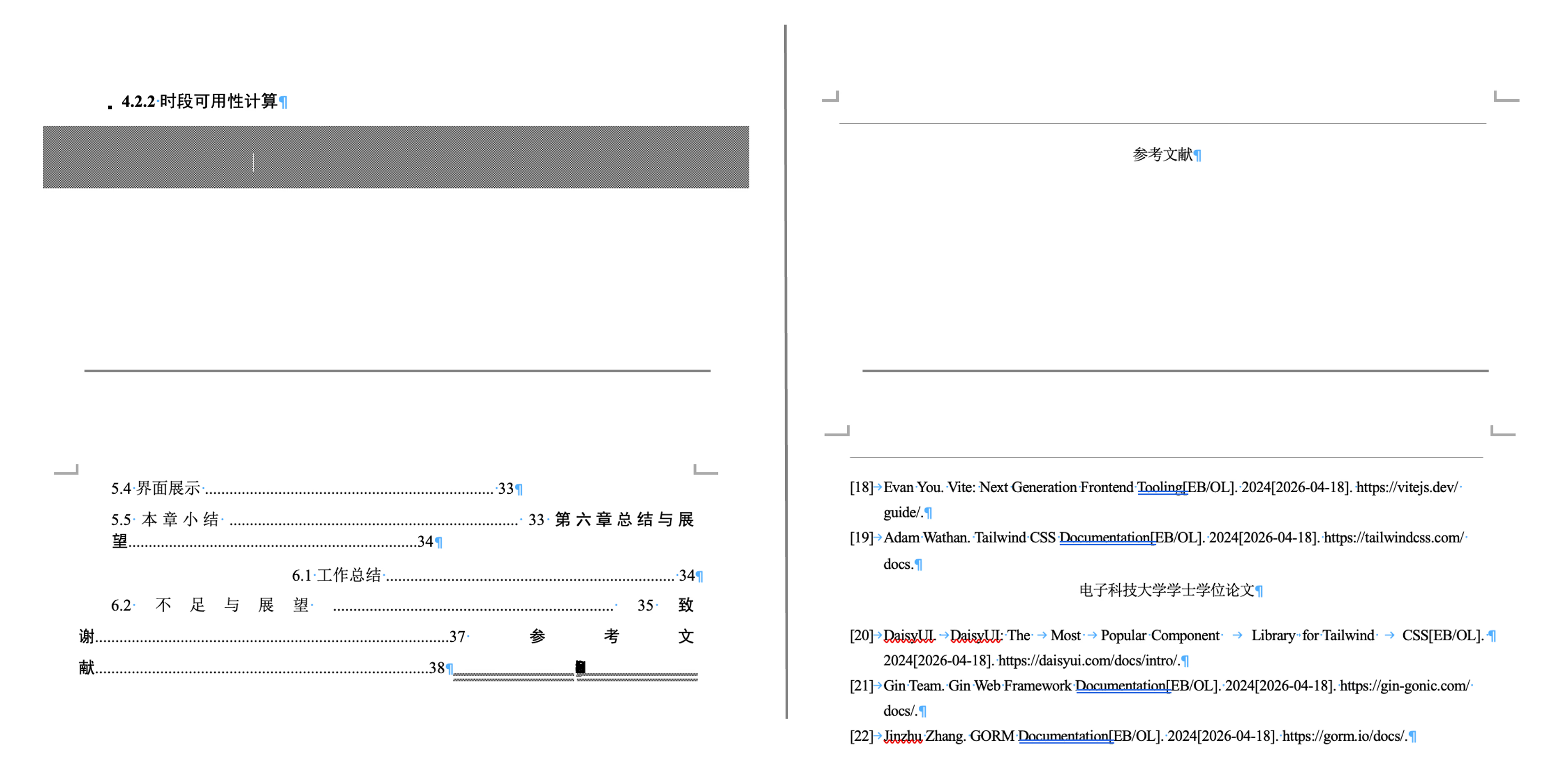
I happen to subscribe to *Microsoft Office 365*, and figured I'd squeeze a little more value out of it before graduating. Opening the PDF directly in *Microsoft Word* automatically saves it as `docx`. The conversion itself went smoothly, but the result was completely unacceptable:
### Opt 2. WPS
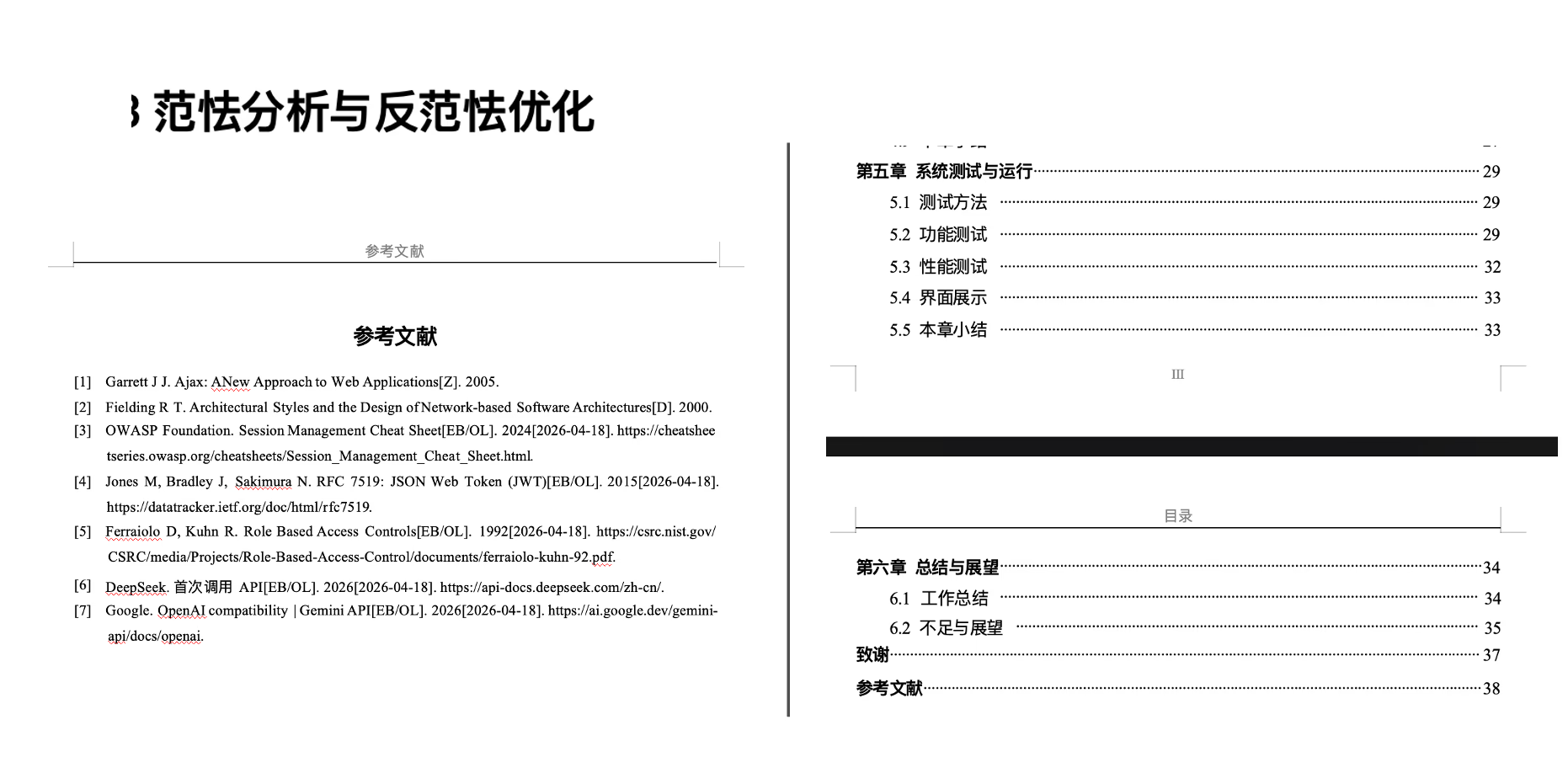
The more viable option right now: buy a one-day WPS premium membership on Xianyu. WPS's PDF-to-Word conversion is decent; the table of contents and references are both preserved.
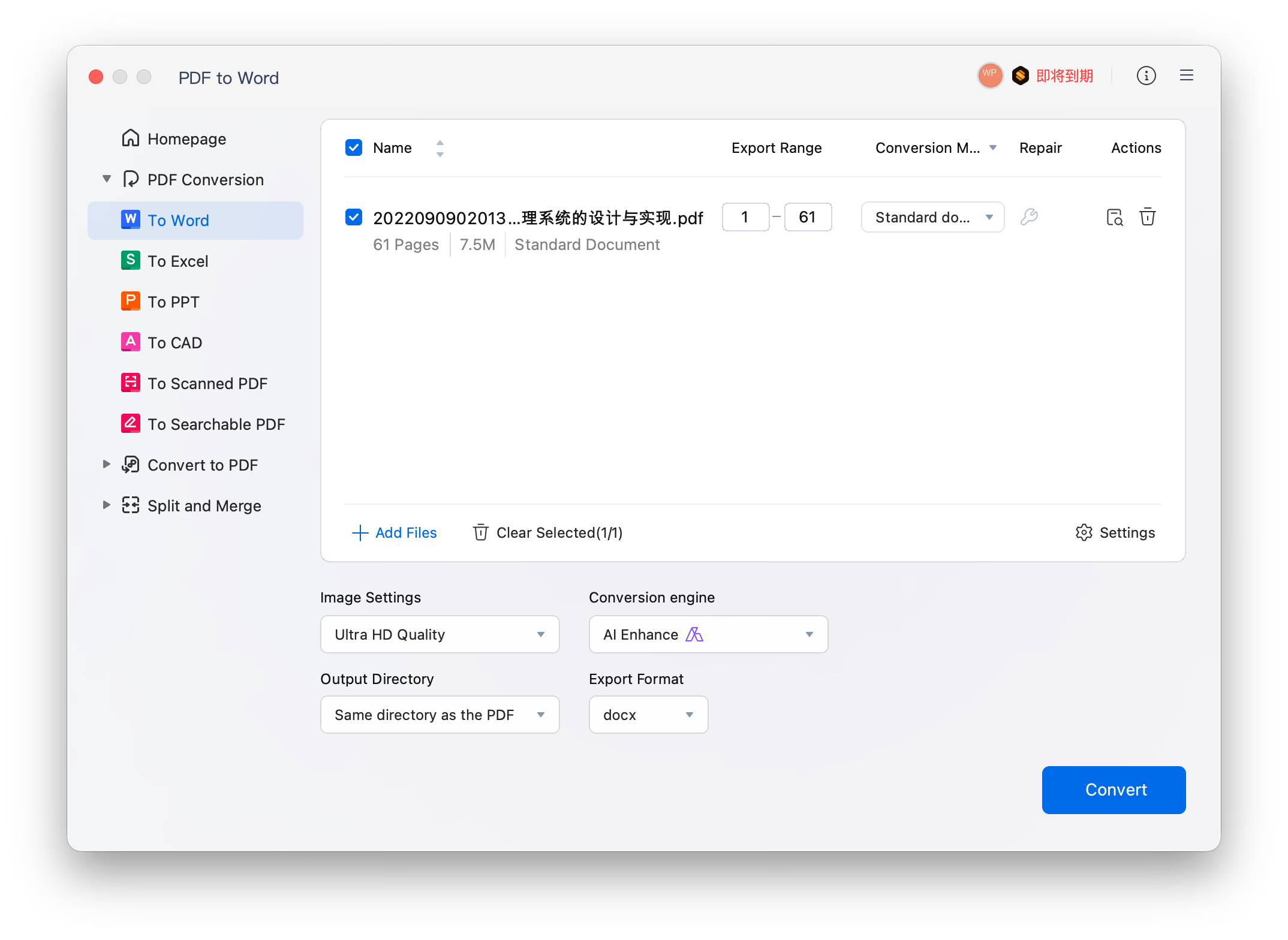
But a few issues remain:
- Text is recognized via OCR, so typos can appear. For example, in my personal report "范式" was misrecognized as "范怯"
- English fonts map correctly to *Times New Roman*, but where the Chinese text should be in Songti (SimSong), it was replaced with PingFang SC. The cause is more or less confirmed: when WPS can't find the original "SimSong" font file on the current device, it falls back to the system default font so the text still renders.
The Chinese-font fix isn't hard: install the fonts like `./uestc-thesis-template/fonts/SimHei.ttf` into the system. Chinese text then maps correctly to SimSong, SimHei, etc.
Whichever conversion approach you use, recheck all of these at the end:
- Table of contents levels and page numbers
- Header, footer, and page-number formats
- Figure, table, and equation numbering
- Reference numbering and formatting
- Chinese fonts, English fonts, and font sizes
- Typos introduced by OCR misrecognition
So PDF-to-DOCX is more of a fallback than a complete workflow. It solves the "must upload a DOCX" formality, but it can't guarantee the converted document still satisfies every detail of the thesis template.
[^1]: [Project Model - Tinymist Docs](https://myriad-dreamin.github.io/tinymist/feature/project.html?utm_source=chatgpt.com#label-A%20Sample%20Usage%20of%20lockDatabase)