---
title: Personalization for Terminal, Shell & Prompt
date: 2024-10-19
excerpt: Good tools make good work. My personal setup for terminal, shell, and prompt, plus a list of handy CLI and TUI tools, for reference.
tags:
- Terminal
- Windows
- Nushell
- Productivity
- Workflow
cover: https://assets.vluv.space/cover/Dev/Others/terminal.webp
updated: 2026-07-08 21:23:11
lang: en
i18n:
cn: /terminal
translation: 2
---
## 📚Related Glossary
| | Meaning | Examples |
| -------- | -------------------------------------------------------- | ---------------------------------------------- |
| Terminal | A text input and output environment. | Windows Terminal, Alacritty, Kitty, Wezterm... |
| Console | A physical terminal. | |
| Shell | command-line interpreter | nushell, bash, zsh, fish, powershell... |
| Prompt | The text that appears at the beginning of a command line | e.g. `$`, `>>>` |
## ⌨️Terminal
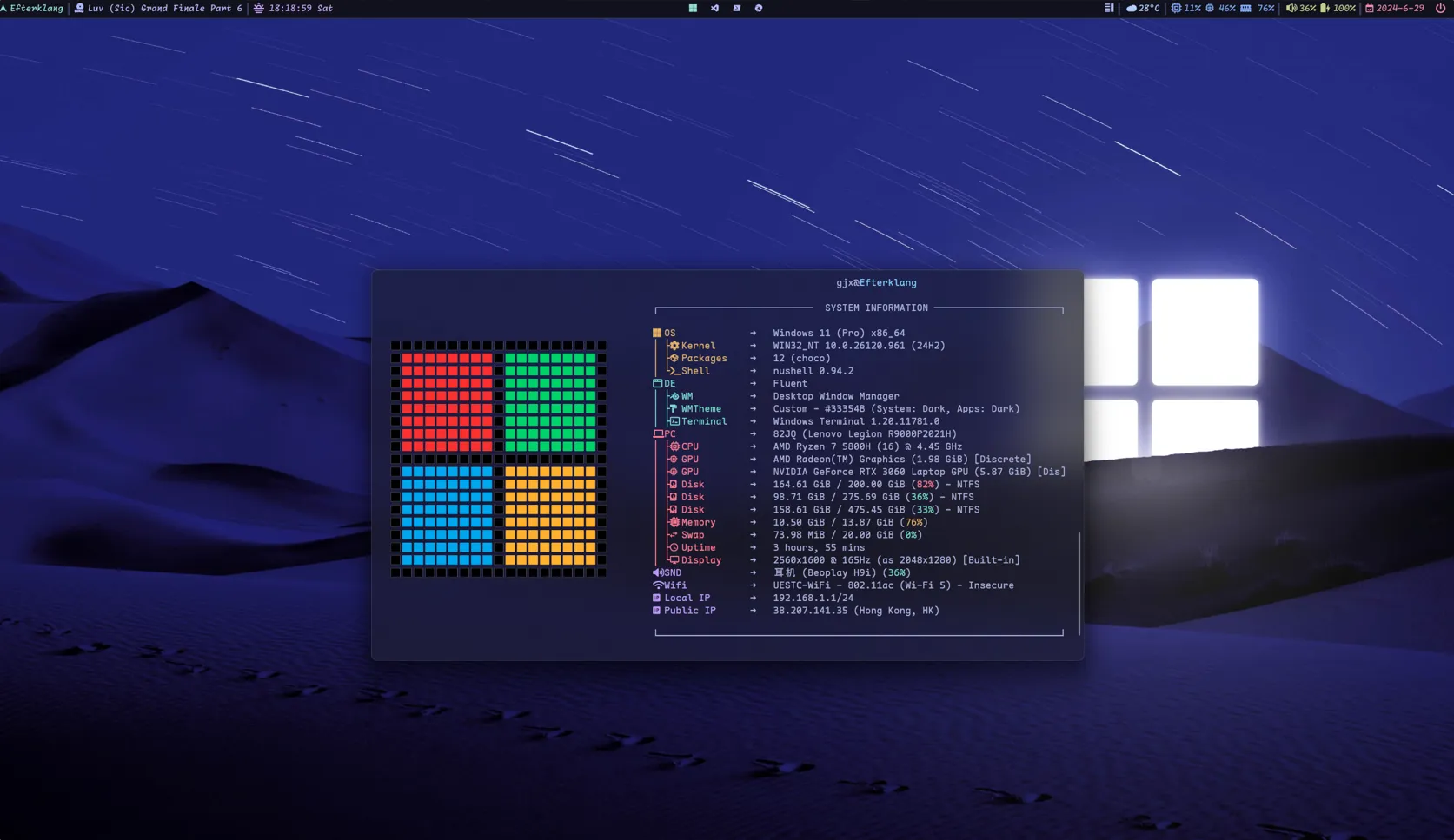
The terminals I have used are Windows Terminal and Wezterm.
Wezterm is highly customizable, down to the position and style of the tab bar, but in my experience it starts up relatively slowly, so Windows Terminal is my daily driver for now.
Some of my personal settings:
- Font: [Maple Mono NF CN](https://github.com/subframe7536/maple-font), a Nerd Font with good support for ligatures and Chinese characters
- Toggle focus mode: enable Focus Mode to hide the tab bar at the top for a cleaner look
- Color schemes: Tokyo Night or Catppuccin Mocha, two good-looking dark themes; you can find more at [windowsterminalthemes.dev](https://windowsterminalthemes.dev)
- Appearance: under Transparency, select Enable acrylic material to get the acrylic effect; opacity 80%
## 🐚Shell
The shells I find pleasant to use are [Nushell](https://www.nushell.sh) and fish. Powershell is powerful too, but its slow startup hurts the experience a bit.
The Nushell community is quite active, e.g. the [nu_scripts](https://github.com/nushell/nu_scripts) repo maintains nushell configs shared by community users; if you like tinkering, it's worth a look.
Below is my personal Nushell config. The full config file is fairly long, so for brevity only the key parts are included here. If you want the complete config, feel free to contact me.
### Keybindings
I installed fzf and bat, two command-line tools that, combined with the config below, make it easy to search command history and files. There are more useful command-line tools listed at the end of this post.
```nushell keybindings.nu
$env.config.keybindings = (
$env.config.keybindings
| append { # history_menu using fzf
name: fzf_history_menu_fzf_ui
modifier: control
keycode: char_r
mode: [emacs, vi_normal, vi_insert]
event: {
send: executehostcommand
cmd: "commandline edit --insert (cat $nu.history-path | fzf --height 70% --layout reverse --border +s --tac | str trim)"
}
}
| append {
name: fuzzy_file
modifier: control
keycode: char_t
mode: emacs
event: {
send: executehostcommand
cmd: "commandline edit --insert (fzf --layout=reverse --preview 'bat --color=always --style=numbers --line-range=:500 {}')"
}
}
)
# in your config.nu
source
```

### Completions
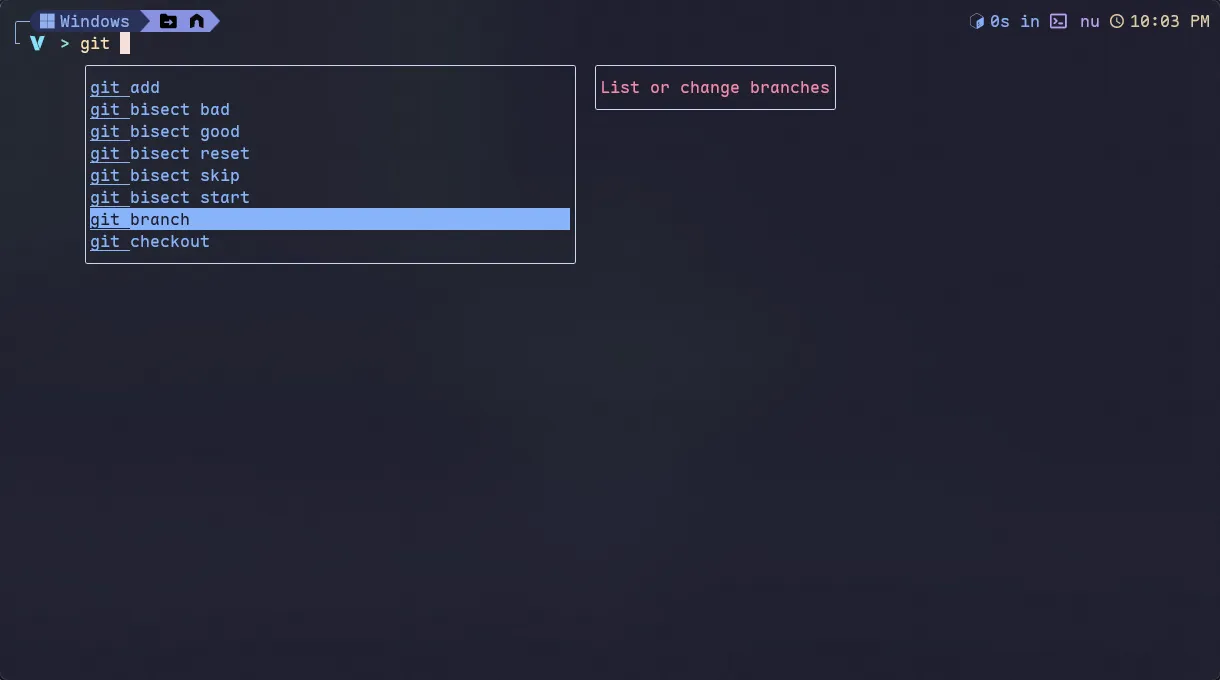
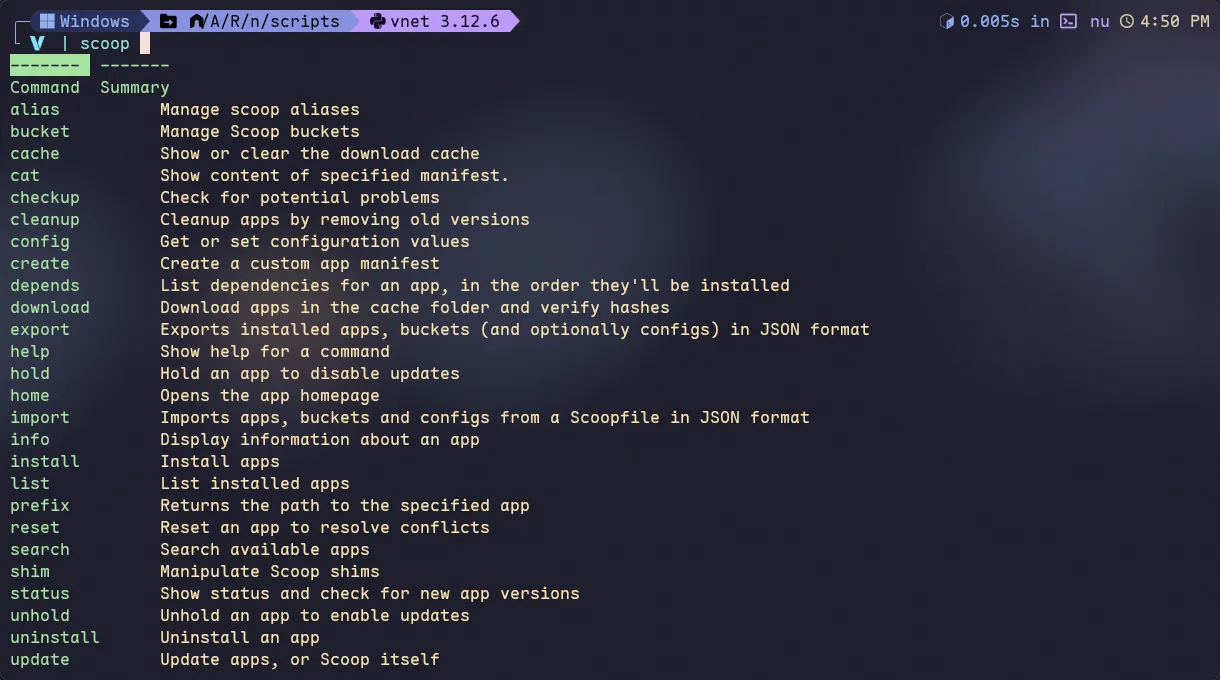
The [nu_scripts](https://github.com/nushell/nu_scripts) repo provides completion scripts for some commands, such as `docker` and `git`. Download them, put them in a directory, and reference them from `config.nu`.
Besides that, Nushell supports external completers like zoxide and carapace, so you don't have to rely on the built-in completion scripts. My setup is covered in [[nu_completion|this post]], and the Nushell Cook Book also has a chapter on [External Completers](https://www.nushell.sh/cookbook/external_completers.html).
---
## Prompt
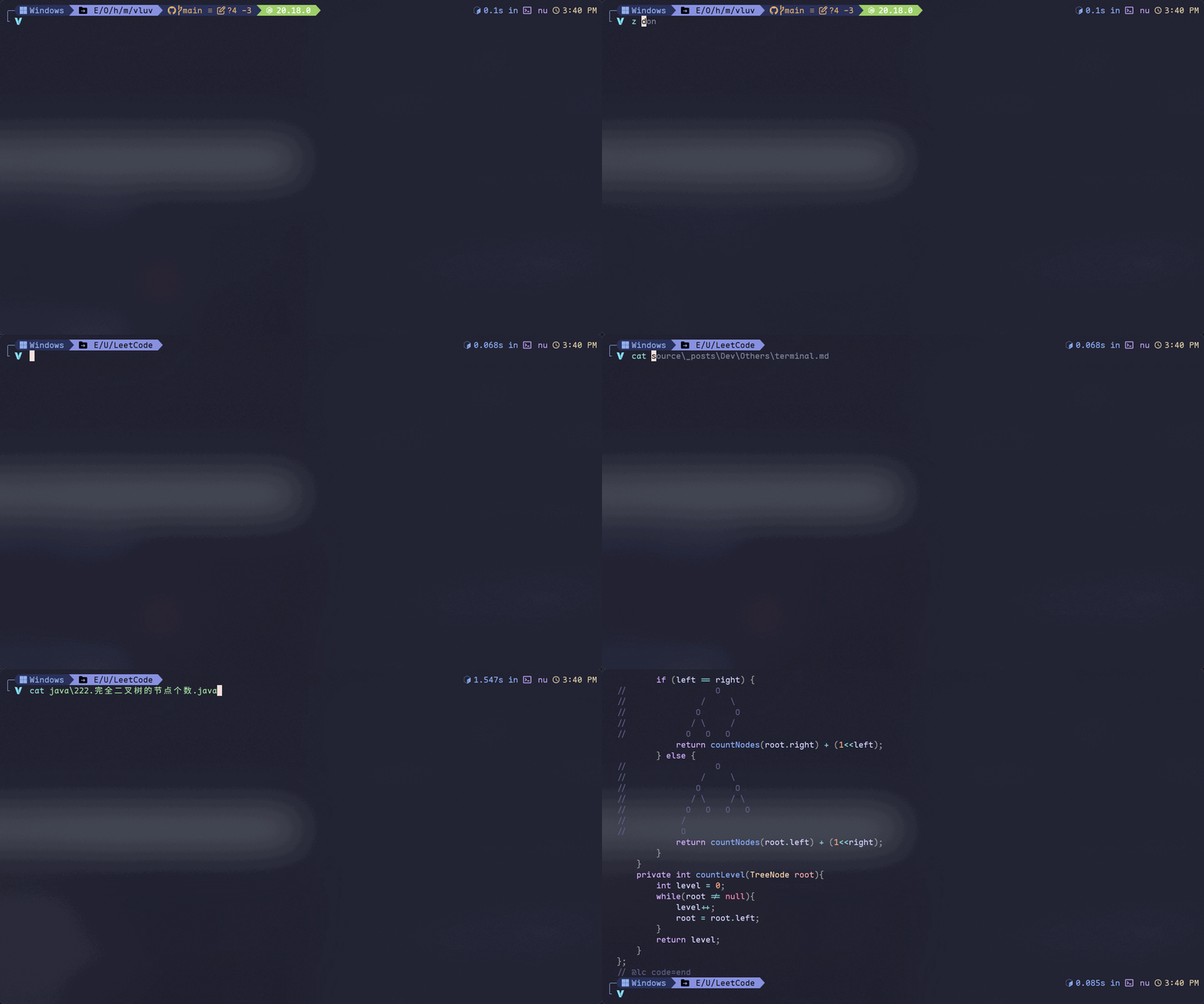
There are many ways to dress up your prompt; well-known options include starship, ohmyzsh, and ohmyposh. I use [ohmyposh](https://ohmyposh.dev).
omp was originally written in Powershell, then rewritten in Go for compatibility. It now works with powershell, nushell, fish, zsh, bash, and more, even on Android.
oh my posh is highly customizable and supports a wide range of prompt segments, including but not limited to:
- OS
- docker
- git
- java, python, golang, rust...
- path
- Execution Time
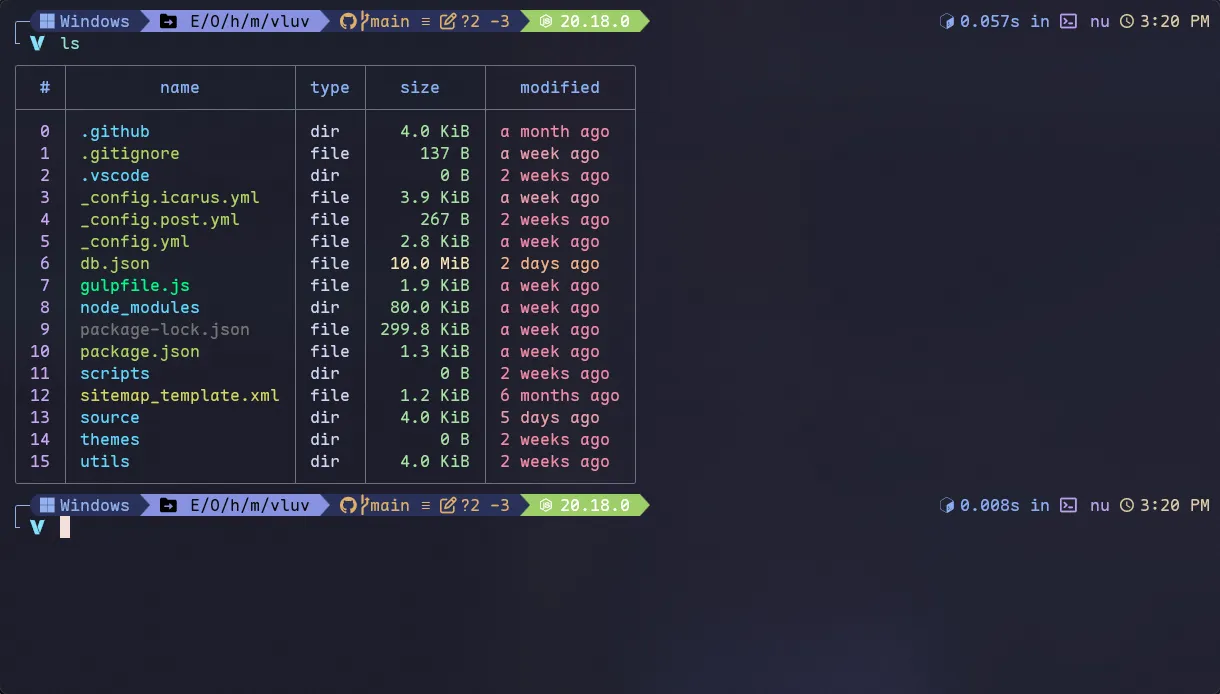
Adding a few prompt segments does improve the development experience. I customized one of the official themes; the config is linked below for reference.
The result is shown in the screenshot; the config file is at [dotfiles/tui_cli/ohmyposh/omp.json at main · Efterklang/dotfiles](https://github.com/Efterklang/dotfiles/blob/main/tui_cli/ohmyposh/omp.json).
## 🛠️CLI & TUI
Here are some useful or interesting command-line tools.
### TUI
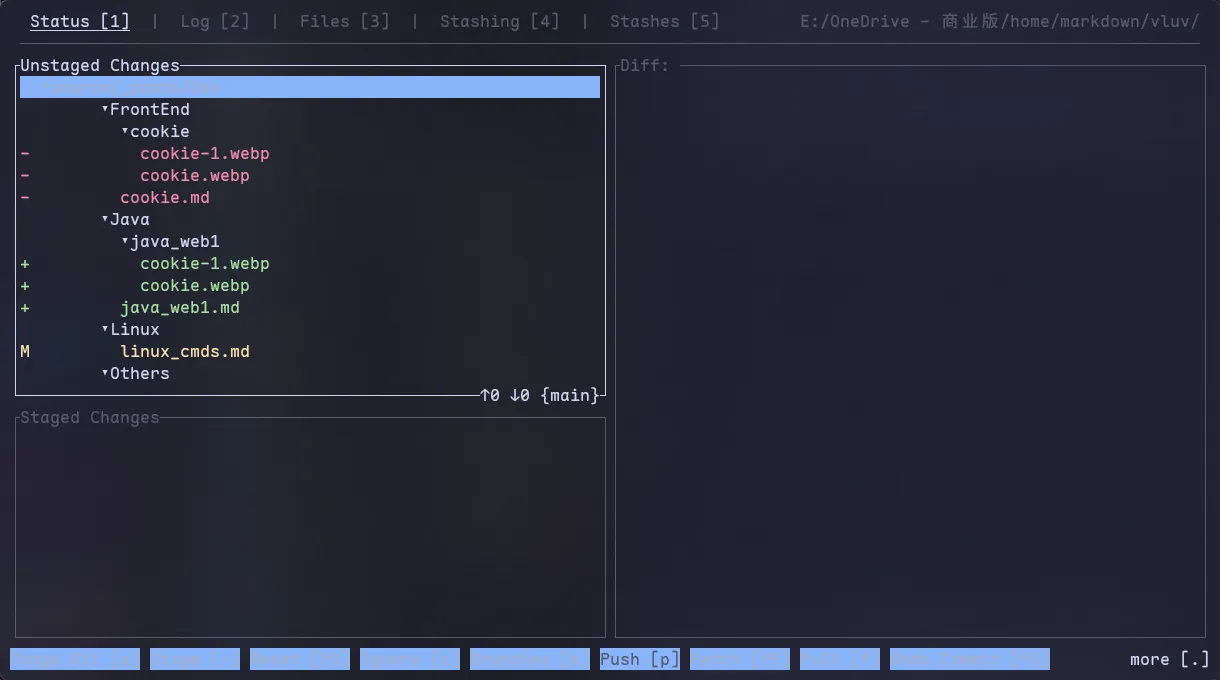
- [gitui](https://github.com/extrawurst/gitui)
Blazing 💥 fast terminal-ui for git written in rust 🦀
Similar to lazygit, manages git repos inside the terminal, great for people who'd rather not touch the mouse
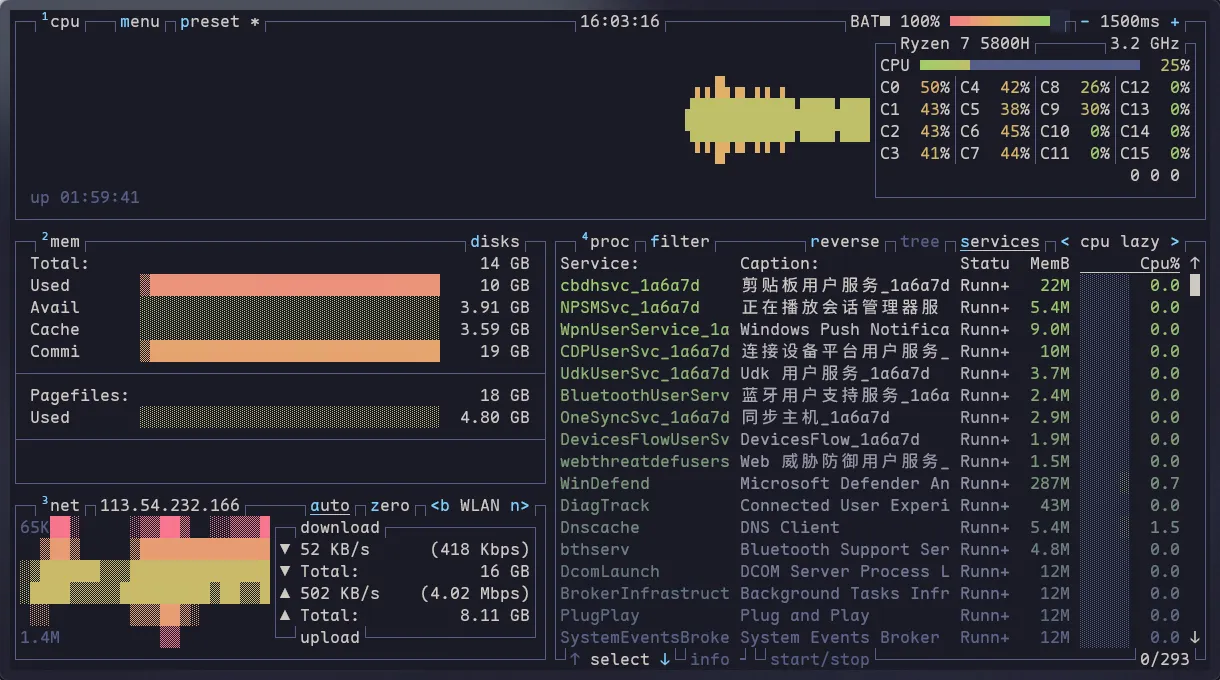
 - [btop](https://github.com/aristocratos/btop)
A monitor of resources
A TUI task manager, also keyboard-only friendly
- [btop](https://github.com/aristocratos/btop)
A monitor of resources
A TUI task manager, also keyboard-only friendly
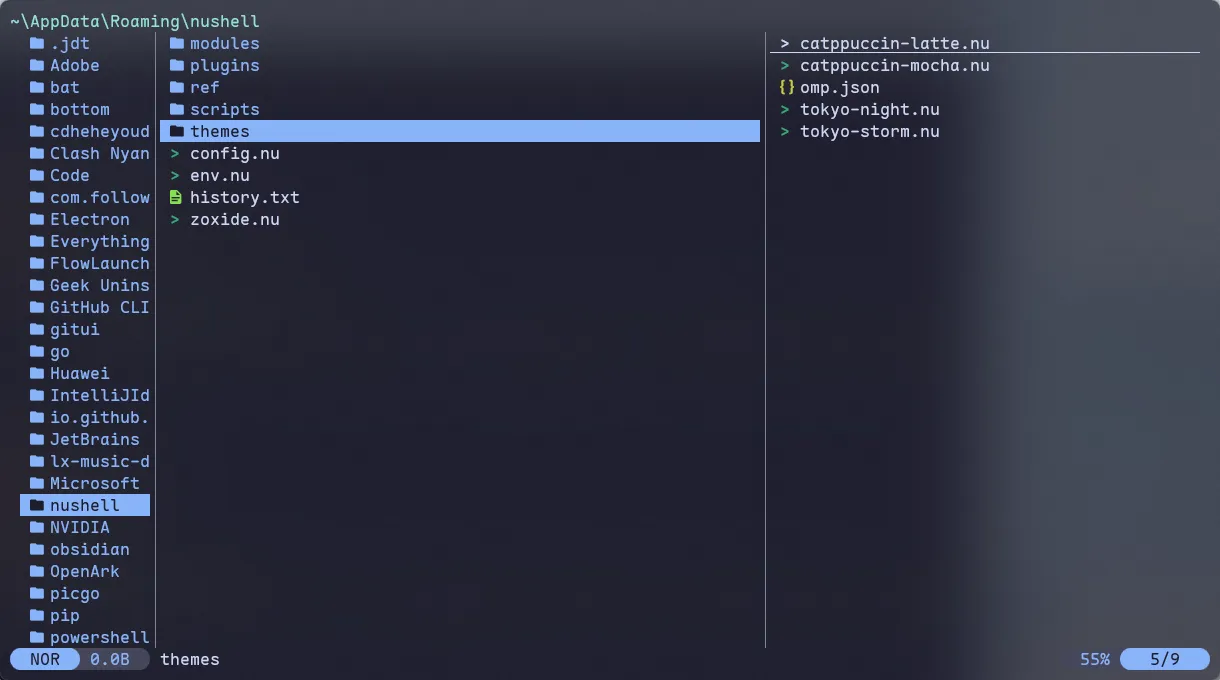
 - [yazi](https://github.com/sxyazi/yazi)
💥 Blazing fast terminal file manager written in Rust, based on async I/O.
A terminal file manager that supports Windows (midnight commander supports Windows too); great for keyboard-only workflows
- [yazi](https://github.com/sxyazi/yazi)
💥 Blazing fast terminal file manager written in Rust, based on async I/O.
A terminal file manager that supports Windows (midnight commander supports Windows too); great for keyboard-only workflows
 ### CLI
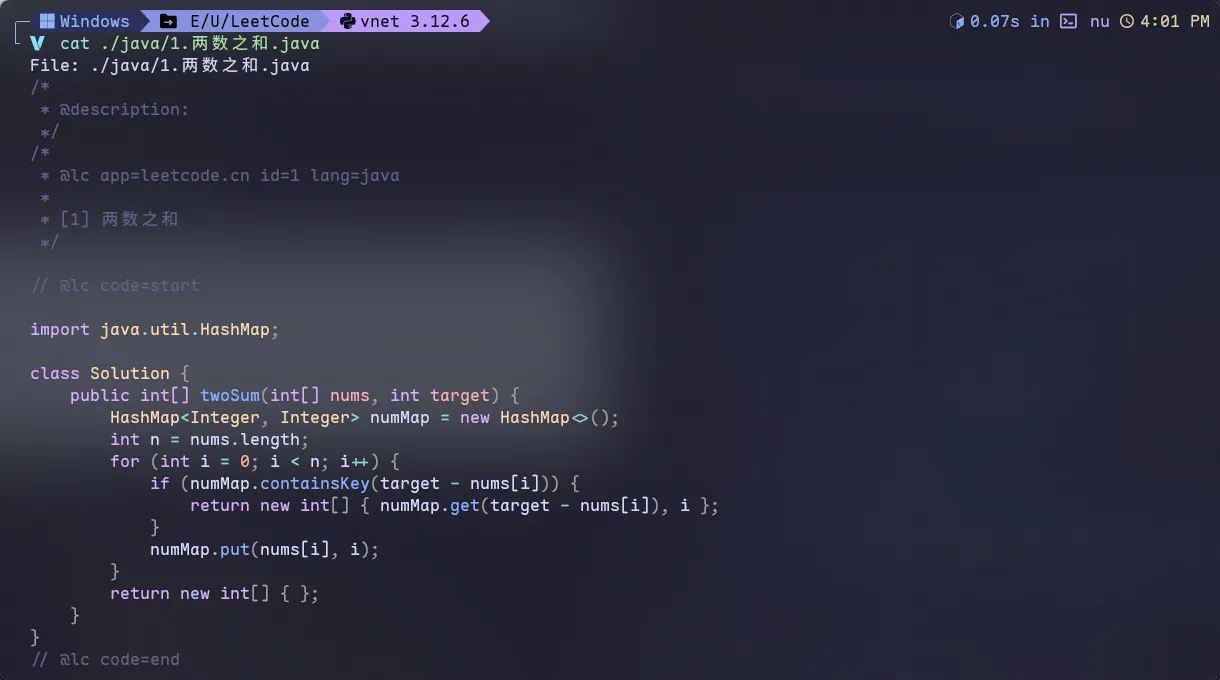
- [bat](https://github.com/sharkdp/bat)
A cat clone with syntax highlighting and Git integration.
Compared to cat, it adds syntax highlighting with a choice of themes
### CLI
- [bat](https://github.com/sharkdp/bat)
A cat clone with syntax highlighting and Git integration.
Compared to cat, it adds syntax highlighting with a choice of themes
 - [zoxide](https://github.com/ajeetdsouza/zoxide)
A smarter cd command. Supports all major shells.
Jump between directories quickly
The next three are all search tools. ripgrep is a grep replacement (the name means R.I.P grep), and VSCode's quick search is built on it. fzf can be combined with other tools to fuzzy-find files, history, and more.
- [ripgrep](https://github.com/BurntSushi/ripgrep)
ripgrep recursively searches directories for a regex pattern while respecting your gitignore
- [fd](https://github.com/sharkdp/fd)
A simple, fast and user-friendly alternative to find.
- [fzf](https://github.com/junegunn/fzf)
🌸 A command-line fuzzy finder;
MISC
- [fastfetch](https://github.com/fastfetch-cli/fastfetch)
- [curlie](https://github.com/rs/curlie)
The power of curl, the ease of use of httpie.
- [gping](https://github.com/orf/gping)
Ping, but with a graph
- code2prompt
- tokei
- [zoxide](https://github.com/ajeetdsouza/zoxide)
A smarter cd command. Supports all major shells.
Jump between directories quickly
The next three are all search tools. ripgrep is a grep replacement (the name means R.I.P grep), and VSCode's quick search is built on it. fzf can be combined with other tools to fuzzy-find files, history, and more.
- [ripgrep](https://github.com/BurntSushi/ripgrep)
ripgrep recursively searches directories for a regex pattern while respecting your gitignore
- [fd](https://github.com/sharkdp/fd)
A simple, fast and user-friendly alternative to find.
- [fzf](https://github.com/junegunn/fzf)
🌸 A command-line fuzzy finder;
MISC
- [fastfetch](https://github.com/fastfetch-cli/fastfetch)
- [curlie](https://github.com/rs/curlie)
The power of curl, the ease of use of httpie.
- [gping](https://github.com/orf/gping)
Ping, but with a graph
- code2prompt
- tokei