---
title: "I Switched from fzf to Television: Declarative Channels for Cross-Shell Fuzzy Finding"
date: 2025-07-24
excerpt: A cross-shell fuzzy finder that replaces manual file navigation with intelligent shortcuts. Here's how it works and why it might replace your current setup.
tags:
- Terminal
- Shell
- TUI
- Workflow
- Productivity
cover: https://assets.vluv.space/cover/ToolChain/television.webp
lang: en
---
You may have been there:
- **Tedious Navigation Loop:** Endlessly typing `{sh} cd foo/ && ls` just to realize you are in the wrong directory, then `{sh} cd ../..` and starting over.
- **The History Searching:** Repeatedly pressing the Up arrow to find a complex command you ran yesterday.
- **The PID Dance:** Running `{sh} ps aux | grep python` to locate a python process, copy the Process ID(PID) and then manually typing it into `{sh} kill`
Fuzzy finders like **fzf** address this issue, but I switched to Television since it offers better UI/UX and cross-shell consistency.
This post is for terminal users who want to navigate faster without maintaining shell-specific glue code. By the end, you will understand how fuzzy finder works, how to setup tv, and whether it fits your workflow better than what you are using now.
## Fuzzy Finder
Imagine you need to find a subdirectory somewhere in your project. You could use `{sh} fd --type directory` to list them all:
```shell
$ fd --type directory
src/
...
packages/core/utils/src/helpers
packages/core/utils/src/parsers
packages/ui/components/Button
```
Scanning through a long list to find the right path is painful. You can use `{sh} fd --type directory | rg ` to narrow down the results—but it’s still a static list. This is where fuzzy finders shine:
```sh
fd --type directory | fzf --preview 'eza --all --git --long --no-time --color=always --icons {}'
```
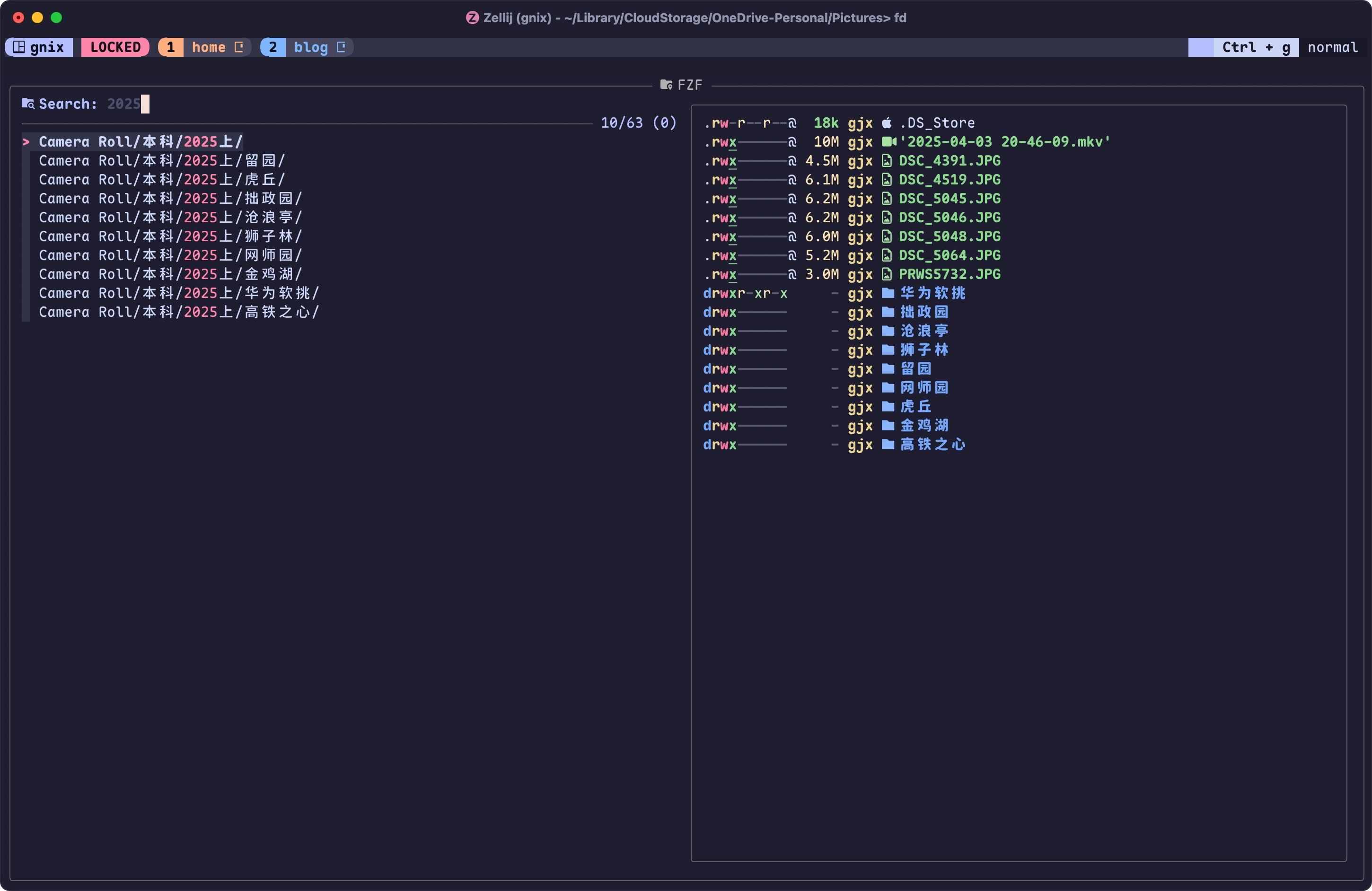
Pipe the output to `{sh} fzf` and you get an **interactive filter with a preview pane**:
### What Happens Underhood
When you execute the pipeline, `fd` begins scanning immediately. Crucially, `fzf` doesn't block waiting for `fd` to finish.
It uses a **streaming architecture**: as soon as `fd` emits a path to *stdout*, `fzf` grabs it from *stdin* and populates the list in real-time. This is why the UI loads instantly, even while `fd` is still churning through thousands of files in the background.
The `--preview` flag transforms `fzf` from a simple text filter into a command orchestrator.
- **Dynamic Substitution** The `{}` placeholder is the key. As you traverse the list, `fzf` dynamically swaps `{}` with the currently highlighted path (e.g., `packages/ui`).
- **Subprocess Execution** For every cursor move, `fzf` spawns a temporary shell process to execute the constructed command (`eza ... packages/ui`).
- **ANSI Passthrough** Since we forced `--color=always`, `eza` outputs raw ANSI escape codes. `fzf` acts as a mini terminal emulator here, capturing those codes and faithfully rendering the colors and icons in the side panel.
You might wonder: "If I scroll down quickly, will it spawn 50 instances of `eza` in a second?"
Smartly, `fzf` employs a **debounce** mechanism. If you scroll fast, it holds off on spawning the preview command until the cursor settles for a fraction of a second. It also aggressively kills any stale `eza` processes from previous selections to prevent your CPU from melting.
Once you find the directory you need and press **Enter**, `fzf` terminates, closes the `eza` preview, and prints the selected path to standard output.
This is the essence of the Unix philosophy. Because `fzf` sends clean text to **stdout**, you can compose it with other commands—like jumping into that directory automatically:
`{sh} cd $(fd --type directory | fzf ...)`
### Integrate it with Your Shell
The real power comes from integrating fuzzy finders into your shell workflow. Press Ctrl + T mid-command, select a file or directory, and the result inserts directly at your cursor. No typing paths, no copy-pasting.
Setting this up requires shell-specific glue code if you're not using bash, zsh or fish(they have official support). Here is how Nushell handles it with `{nu} commandline edit`:
```nushell
{
name: fuzzy_file
modifier: control
keycode: char_t
mode: [emacs, vi_normal, vi_insert]
event: {
send: executehostcommand
cmd: "commandline edit --insert (fd --type file | fzf --preview 'eza --all --git --long --no-time --color=always --icons {}')"
}
}
```
## From Fzf to Television
So you have seen how fzf works. It is powerful, but integrating it across different shells requires shell-specific glue code. I mainly use nushell on my Windows & macOS laptop, but sometimes I use zsh or bash just for fun. If use fzf, I have to maintain different configurations.
Television (tv) tackles this complexity by solving it at the **configuration layer** rather than the **script layer**. It acts as a fast, portable fuzzy finder that guarantees a consistent experience everywhere:
- **Declarative Channels:** Instead of complex pipes, logic is defined in **TOML-based Channels**. These are easy to read, share, and version control
- **Shell Integration**: Configure it once in your `config.toml`, and enjoy consistent behavior across bash, zsh, fish, and nushell (e.g., Ctrl + T for smart completion, Ctrl + R for history search). No manual wiring required.
- **Modern UX & Discoverability:** It features a polished UI with a dynamic **shortcut hint bar** —— a game-changer for onboarding that lets you learn commands on the fly, no manual memorization needed.
### Quickstart
#### Step 1: Install Television
Download the `tv` binary for your operating system:
```shell
# Windows (Scoop)
scoop install television
# macOS (Homebrew)
brew install television
# Linux / Other
cargo install television
```
#### Step 2: Download Channels
Run `{sh} tv update-channels` to download community-maintained channels. Channels are predefined search sources that tell `tv` what to search and how to display results.
#### Step 3: Shell Integration
Inject the `tv` startup script into your shell configuration, this script will binds two global shortcuts that integrate `tv` into your shell workflow:
```sh
# Zsh
echo 'eval "$(tv init zsh)"' >>~/.zshrc
# Bash
echo 'eval "$(tv init bash)"' >>~/.bashrc
# Fish
tv init fish | source # Add to config.fish
```
## Channel
> Channels are short configuration recipes that typically dictate what tv should search through and what's displayed on the screen along with various other options.
>
> [Channels | Television](https://alexpasmantier.github.io/television/docs/Users/channels)
Channels define what `tv` searches and how results display. They live in `~/.config/television/cable/`.
The `{sh} tv update-channels` command you ran earlier downloads commonly used channels from the community.
```sh
$ tree ~/.config/television
~/.config/television
├── config.toml
├── cable
│ ├── alias.toml
│ ├── aws-buckets.toml
│ ├── aws-instances.toml
│ ├── git-repos.toml
│ ├── nu-history.toml
│ ├── text.toml
│ └── zsh-history.toml
```
> [!WARNING]- Requirements
>
> - Some channels require installing specific CLI tools, such as `{sh} bat` and `{sh} fd`.
> - You may set `shell = bash/zsh` in your `config.toml` to avoid errors if using nushell[^1] given that most community-maintained channels use posix-compatiable shell's syntax
>
> ```toml config.toml
> shell = "bash" # you can also use zsh
> ```
### Enhance Your Workflow with Channel
This specific capability—**smart shell integration**—is the primary reason I migrated from fzf to television.
Instead of a static file search, tv intelligently detects the command currently in your buffer and triggers the appropriate channel when you press Ctrl + T. It adapts to your context:
- **Editing:** Typing `{sh} vim` or `{sh} cat` triggers the files channel.
- **Navigation:** Typing `{sh} cd` triggers the dirs channel.
- **Management:** Typing `{sh} kill` or `{sh} ps` triggers the procs channel.
```toml config.toml
[shell_integration.channel_triggers]
"dirs" = ["cd"]
"files" = ["cat", "vim"]
```
::: tabs
@tab:active Files
@tab Directories
:::
This behavior is defined declaratively in config.toml under the `{toml} [shell_integration.channel_triggers]` section. You can customize these mappings to fit your workflow (Check my [config.toml](https://www.google.com/url?sa=E&q=https%3A%2F%2Fgithub.com%2FEfterklang%2Fdotfiles%2Fblob%2Fmain%2Ftui_cli%2Ftelevision%2Fconfig.toml) on GitHub for a full example):
## Trade-offs to Consider
Television is not a perfect replacement for every fuzzy finder use case.
**When `tv` makes sense:**
- You switch between shells frequently and want consistent behavior
- You prefer configuration files over shell scripts
- You value the built-in channel system for common searches
**When to stick with fzf:**
- You have heavily customized fzf integrations you cannot easily migrate
- You are happy with your current setup and do not need cross-shell portability
The real insight here is that shell tooling fragmentation creates hidden work. Every time you customize fzf for bash, you create future work if you ever switch shells. `tv` attempts to solve this at the configuration layer rather than the script layer.
## Read Also
Dive deeper into the full feature set in the [Television documentation](https://www.google.com/url?sa=E&q=https%3A%2F%2Falexpasmantier.github.io%2Ftelevision%2F). I also highly recommend checking out the [Unix Community Channels](https://www.google.com/url?sa=E&q=https%3A%2F%2Falexpasmantier.github.io%2Ftelevision%2Fcommunity%2Fchannels-unix) to preview the latest integrations built by the community.
The documentation is worth a visit just for the aesthetics; it sports a clean UI paired with the charming pixel-art Doto font.
[^1]: [Many channel don't work in nushell · Issue #884 · alexpasmantier/television](https://github.com/alexpasmantier/television/issues/884)