When to Use It
While developing a feature, it’s easy to pile up temporary commits: fix a typo, add a test, roll back an experiment, rename something again. They’re useful for local development, but if they land on the main branch as-is, the commit history gets fragmented.
git rebase -i is well suited for cleaning up these local commits before submitting. It can squash several consecutive commits into one, or stop at a historical commit so you can amend its content or message.
rebase rewrites commit history. Don’t casually rebase commits that have already been pushed to a remote and that others may have built on. The recommended use cases are local branches, personal feature branches, or tidying up history before opening a PR.
If you do need to push rewritten history, prefer git push --force-with-lease.
It’s safer than git push --force: if the remote branch has new commits your local copy doesn’t know about, the push will fail.
Common commands in git rebase -i:
Commands
p, pick = use commitr, reword = use commit, but edit the commit messagee, edit = use commit, but stop for amendings, squash = use commit, but meld into previous commitf, fixup = like "squash", but discard this commit's log messagex, exec = run command (the rest of the line) using shelld, drop = remove commit
Squashing Multiple Commits
To squash the last three commits, run:
git rebase -i HEAD~3
HEAD~3 means three commits back from the current one. After the command runs, Git opens the editor specified by core.editor and lists those three commits.
You can also specify a commit hash:
git rebase -i 8c0a3c
This lists all commits between 8c0a3c (exclusive) and HEAD.
git rebase -i is good for consecutive commits. Handling non-consecutive commits usually takes multiple rebases, or a more deliberate branch-cleanup strategy first.
The editor can be set via core.editor. For example:
git config --global core.editor "nvim"
In the editor, change pick on the second and third lines to squash or s, then save and quit. Git will open the editor again so you can edit the squashed commit message.
If you use Vim, this substitution changes pick to s on lines 2 through 3::2,3s/pick/s/
Here 2,3 is the line range, and s/pick/s/ replaces pick with s.

Edit the commit message, then save and close the editor. If everything went well, your three commits should now be squashed into one.
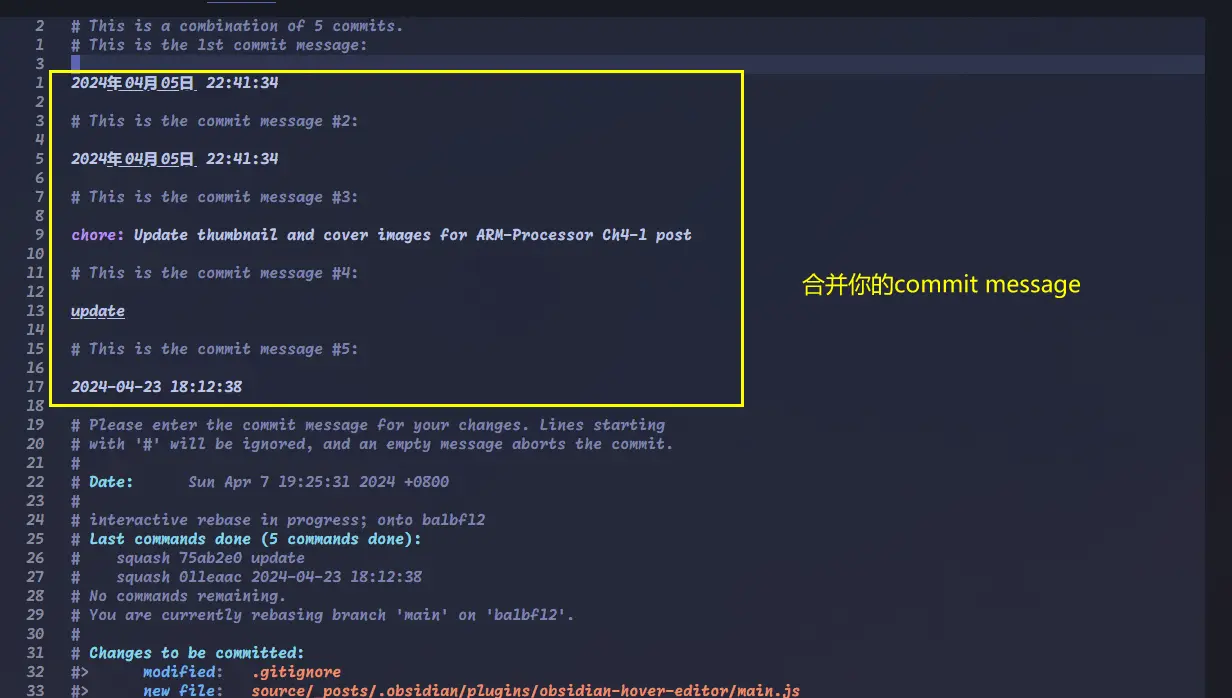
This step changes Git history. If those commits were already pushed to a remote, you’ll need git push --force-with-lease to push the rewritten branch.
Editing a Commit
If a commit somewhere in history has a mistake, you can also use rebase -i to stop at that commit, fix the files, and run commit --amend.
Suppose the current history looks like this, and the to fix commit contains an error: 1 == 2.* 7f3af51 (HEAD -> main) 4th* a14992f to fix* b16a285 second_amend* c6bb6ae first
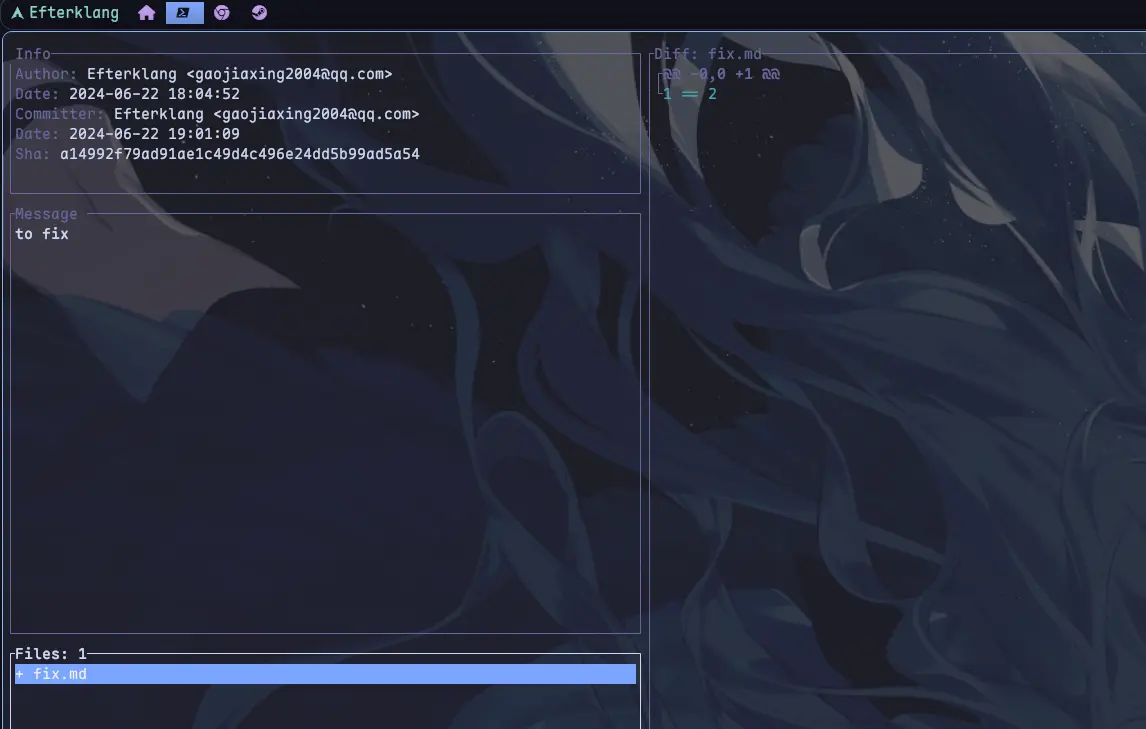
Since we want to edit the earlier of the last two commits, run:$ git rebase -i HEAD~2[.git/COMMIT_EDITMSG]- pick a14992f to fix+ edit a14992f to fixsave and quit
Git stops at the to fix commit. Now edit the file, stage the change, and use git commit --amend to update the current commit.$ vim ./fix.md- 1 == 2+ 1 != 2save and quit$ git add ./fix.md$ git commit --amend[.git/COMMIT_EDITMSG]- to fix+ fixedsave and quit$ git rebase --continue
git rebase --continue tells Git to keep applying the remaining commits. When it finishes, the history looks like this:* dc6de4f (HEAD -> main) 4th* a33b9a0 fixed* b16a285 second_amend* c6bb6ae first
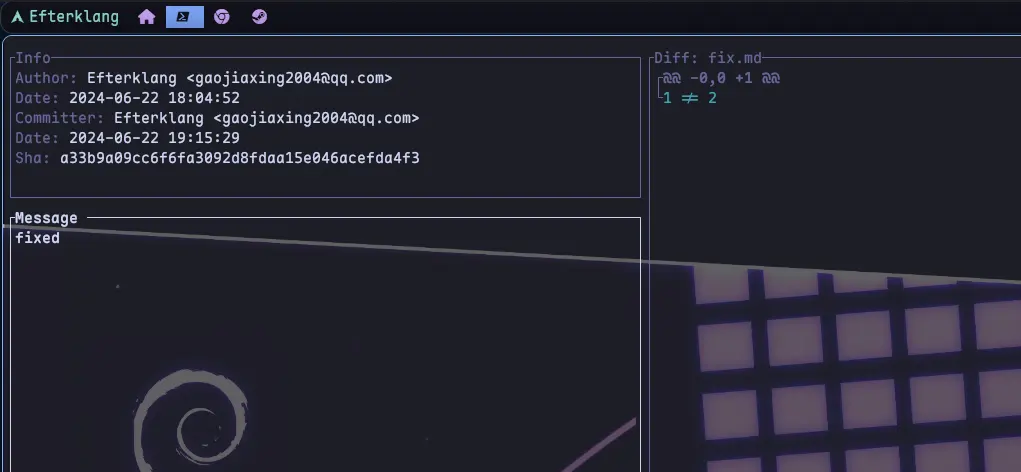
As you can see, to fix became fixed, and the following 4th commit also got a new hash. That’s the nature of rebase: it doesn’t modify history in place, it regenerates a stretch of it.
New Command: git history
Git 2.54.0 added an experimental command: git history. It also rewrites commit history, but its positioning differs from git rebase -i.
git rebase -i is more like a general-purpose editor: you first select a stretch of consecutive history, then decide in the todo list whether each commit is pick, squash, edit, or drop. It’s suited to batch-cleaning a range of commits.
git history is more of a high-level, task-oriented command. For now it offers two main subcommands:
git history reword <commit>
git history split <commit>
reword edits the message of a specific commit:
git history reword a14992f
It opens the editor so you can revise that commit’s message. This used to be doable with git rebase -i plus reword, but git history reword <commit> is more direct.
split splits one commit into two:
git history split a14992f
Git interactively asks which hunks should go into the new commit. This operation used to require a combination of git rebase -i, edit, git reset, re-running add -p, and multiple commits, which was longer and more error-prone.
There are several important differences from git rebase -i:
git historyis still experimental, and its behavior may change.git historyby default updates all local branches pointing to descendants of the original commit; you can restrict it to the currentHEADwith--update-refs=head.git historycurrently does not run Git hooks.git historydoesn’t yet support histories containing merge commits, nor operations that may produce conflicts.- If you want to reapply a range of commits onto another base, or edit multiple commits at once, you should still use
git rebase.
So you can think of it this way: git rebase -i is the general-purpose tool, and git history is Git’s new, more opinionated entry point for history editing. Once it stabilizes, tasks like rewording a single commit message or splitting a single commit may be a better fit for git history.