

- Personal
- Microsoft 365 Personal
- Microsoft 365 Family
- Business
- Global version
- 21Vianet version
OneDrive Client Login
Problem
Every time the computer logged in to OneDrive, or when I used PowerPoint/Word with shared documents, it would get stuck on the login screen. After disabling the Clash system proxy and logging in again, it worked normally.
The reason was probably that my subscription only allowed domestic IP addresses during login.
This reference article lists all endpoints used by the consumer version of Microsoft OneDrive. If your organization restricts computers on your network from connecting to the Internet, this article lists the fully qualified domain names (FQDNs) and ports you should include in outbound allow lists to ensure computers can successfully use the consumer version of OneDrive.
Required URLs and ports for OneDrive
Solution
In Clash for Windows, go to Settings, then System Proxy - Bypass Domain/IPNet, edit it, and add login.microsoftonline.com.bypass: - localhost - 127.* ... - 192.168.* - <local> - login.microsoftonline.com
This setting corresponds to the bypassText field in ~/.config/clash/cfw-settings.yaml.bypassText: | bypass: - localhost - 127.* ... - 192.168.* - <local> - login.microsoftonline.com
Download and Upload
The OneDrive for Business data used by Microsoft 365 global-version clients in China is stored in the Asia-Pacific region, namely Hong Kong and Singapore. Data for some other services, such as Sway, Yammer, and Forms, is indeed stored in the United States.
OneDrive for Business itself does not throttle speeds. Upload and download speeds depend on the proxy; using a proxy (tested with a Hong Kong node) is usually faster.
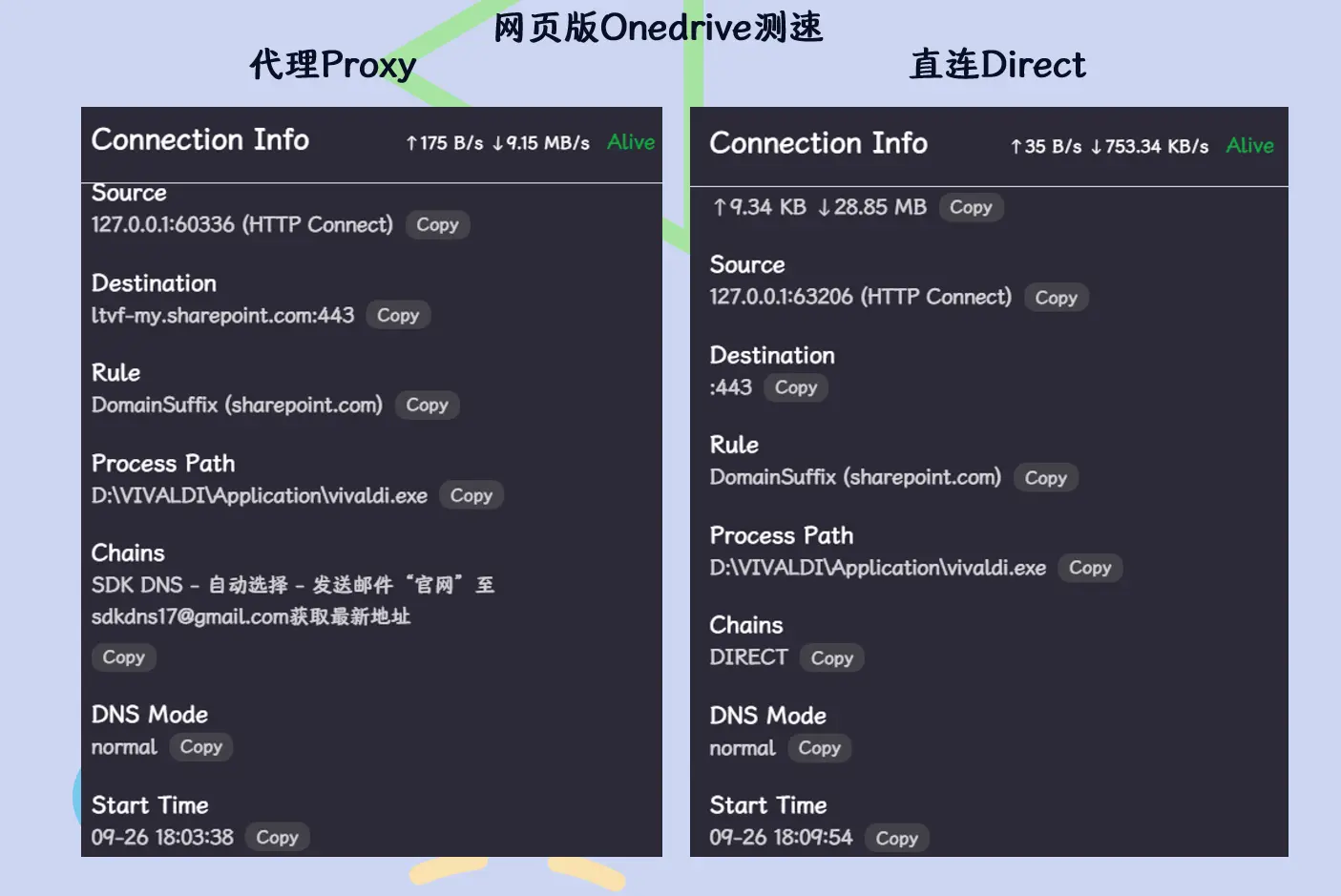
How do you route downloads and uploads through the proxy?
Enable CFW’s Mixin mode, add the following two rules, and replace SDK DNS with a proxy node from your proxy-groups.module.exports.parse = ({ content, name, url }, { yaml, axios, notify }) => { content.rules.unshift("DOMAIN-SUFFIX,sharepoint.com,SDK DNS") content.rules.unshift("PROCESS-NAME,OneDrive.exe,SDK DNS") content.rules.unshift("PROCESS-NAME,FileCoAuth.exe,DIRECT") // Older rule, probably used for Office co-authoring content.rules.unshift("DOMAIN-SUFFIX,.cn,DIRECT") content.rules.unshift("PROCESS-NAME,POWERPNT.exe,DIRECT") return content}
Mixin
mixin allow you to overwrite original configuration
In short, subscription updates directly replace the original profile, so every update would require adding custom configuration again.
Mixin can merge custom configuration with the subscription, avoiding the trouble of manual edits after each update.
Connections
In CFW’s Connections panel, you can view network connections established by the host. The connection information there can help determine how to write routing rules.
Ref
Microsoft 365 customer data storage locations
Cloudflare Speed Test