Intro
I once saw a Xiaohongshu post where the author could not download the VS Code Chinese language pack normally. I left a comment suggesting that they download the VSIX file from Marketplace and install it offline. Later, someone replied that they could not find the download button. After checking VS Code Marketplace again, I found that the VS Code team seems to have removed that UI entry.
This article explains how to download VS Code extensions offline through the API, and how to install the downloaded extension package. One of the main reasons for the removal of the Download Extension button was that it was not supporting pre-release extensions, and was a constant source of user confusion. E.g. users want to download the latest release version of the extension, but the button downloads the highest version, which is the pre-release version. Also platform specific extensions dropdown was highly confusing. Having the Download Extension button in VS Code - both of those problems get fixed, the right platform gets auto-picked, and the release / pre-release is respected. Short version: Marketplace removed the download button to reduce the chance of downloading a package for the wrong platform or accidentally getting a pre-release build.
Downloading a VSIX File for Offline Installation
This method uses Microsoft’s official API and is relatively stable. The Chinese language pack is used here as an example.
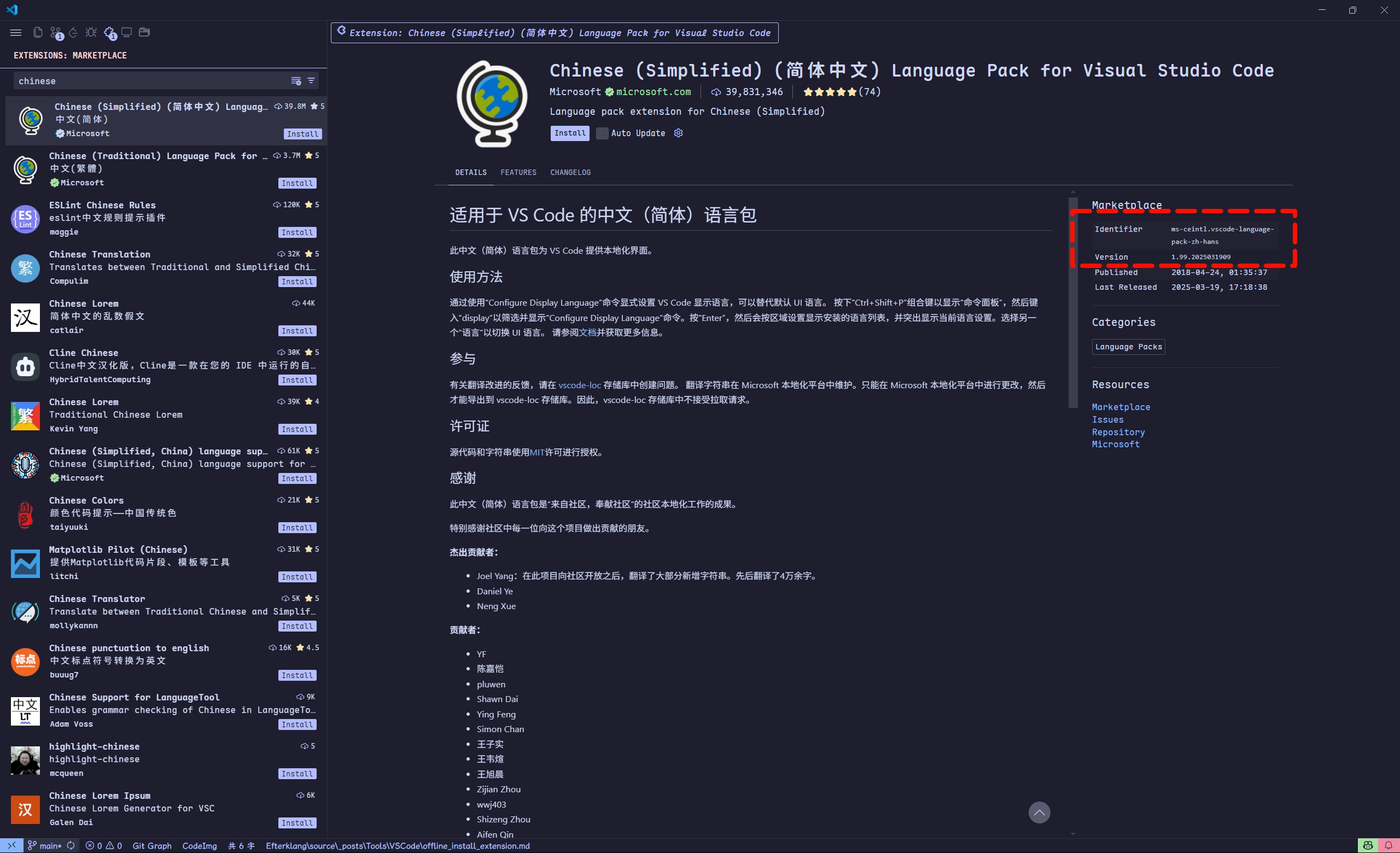
The extension page shows the following metadata on the right side. In the More Info section, record these two fields:
- Identifier:
ms-ceintl.vscode-language-pack-zh-hans - Version:
1.99.2025031909
The VS Code extension download URL follows this format:
https://marketplace.visualstudio.com/_apis/public/gallery/publishers/{publisher_id}/vsextensions/{extension_name}/{version}/vspackage
Replace the placeholders in the URL:
| Placeholder | Description | Example value for the Chinese language pack | Corresponding ID part |
|---|---|---|---|
{publisher_id} | Publisher ID | ms-ceintl | The part before . |
{extension_name} | Extension | vscode-language-pack-zh-hans | The part after . |
{version} | Version | 1.99.2025031909 | The Version field |
Open https://marketplace.visualstudio.com/_apis/public/gallery/publishers/ms-ceintl/vsextensions/vscode-language-pack-zh-hans/1.99.2025031909/vspackage in your browser, and the extension will be downloaded locally, usually as a .vsix file.
Downloading an extension for a specific platform
Some extensions require a platform-specific package. If a generic package does not work, append the ?targetPlatform={platform} parameter to the end of the URL.Binary type Target Platform Alpine Linux 64 bit alpine-x64 Alpine Linux ARM64 alpine-arm64 Linux ARM32 linux-armhf Linux ARM64 linux-arm64 Linux x64 linux-x64 Windows ARM win32-arm64 Windows x64 win32-x64 macOS Apple Silicon darwin-arm64 macOS Intel darwin-x64
You can also search for the extension online and download the VSIX file from these sites:
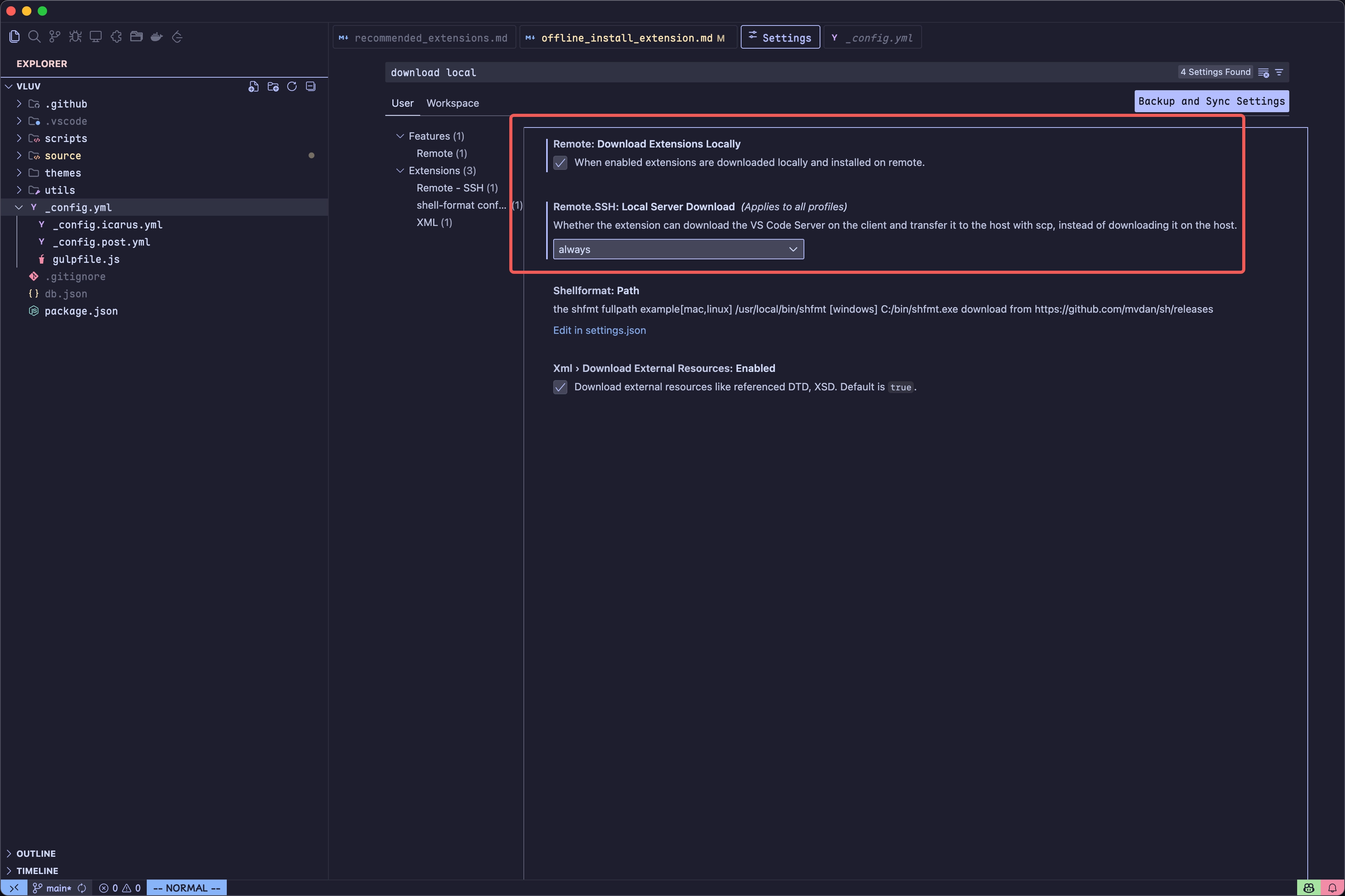
In some cases, localhost has internet access, but the remote host connected through SSH cannot reach the public internet.
The solution is to use the following setting.
After it is enabled, VS Code downloads the .vsix file on localhost and sends the extension to the remote host through scp.
Installing a VSIX Extension File
After downloading the extension package, install it in VS Code with one of the following methods.
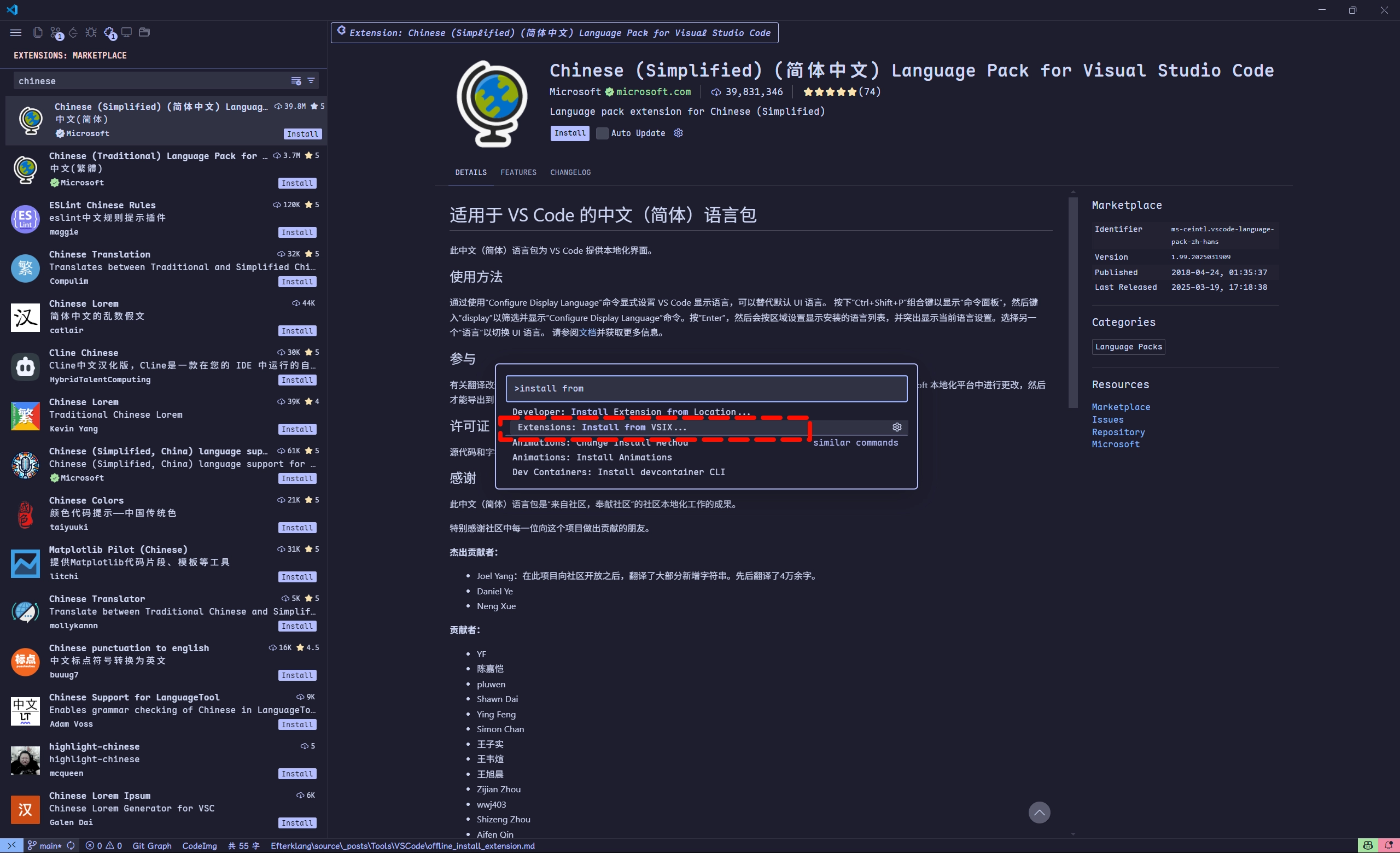
- Press Ctrl+Shift+P / Command+Shift+P.
- Enter and select
Extensions: Install from VSIX. - In the file picker, find and select the downloaded
.vsixfile.
Run code --install-extension <path_to_vsix_file> in your terminal.