Intro
While reviewing the blog at night, I found a post about music easter eggs in Cyberpunk 2077: music_in_cyberpunk.
The “punk” in the game title has some connection to rock music, so the developers chose many rock works when naming missions. For example, one mission in Judy’s storyline is named “Pyramid Song”; in the English version, the mission name is Pyramid Song, a Radiohead single from the album Amnesiac.
The Chinese localization team also put real care into this. When translating some mission names, they referenced local works or lyrics. The final mission in the base game’s Devil ending, “梦安眠于九霄”, comes from Hedgehog’s 火车驶向云外,梦安魂于九霄. In the DLC Reed route, Reed sends V a message near the ending and asks to meet at the basketball court. The mission name “根已经枯萎” is a lyric from The Flowers’ song 花. There are also references to Omnipotent Youth Society’s 山雀, Xu Wei’s 两天, and more…
Player
For a better listening experience, I tried several setups and eventually chose to store music files in cloud storage, then download local players on different devices.
- Android: Salt Player, Gramophone, Cute Music, Stellio
- Windows: Coriander Player, foobar2000
- Sync solution: FolderSync + OneDrive; other cloud services also work
- Lyric matching: Music Tag, SongSync
- MP3 metadata: Music Tag, Automatic Tag Editor
Salt Player
Salt Player is for Android and supports Monet colors. The Windows version is still under development and was planned for release in 2025.
Gramophone
Gramophone ˈɡraməˌfōn A sane music player built with media3 and material design library that is following android’s standard strictly.
It follows the Material Design language and looks quite good. The home page can show tracks by genre, which seems relatively uncommon in other apps. The implementation probably checks the genre tag in MP3 metadata, but many tracks leave the genre field blank. In the screenshot below, 685 tracks are Unknown Genre. The downside may be that the lyrics interface is rather simple.
Tag Editor
Music Tag can embed lyrics into music files and edit metadata, such as track artist, album name, album cover, etc. It supports batch processing.
SongSync is an Android app to download lyrics for songs in your music library. It is also a lyric matching tool, but its feature richness and stability are a bit weaker than Music Tag.
Sync Music
Requirements:
- Sync tool: FolderSync
- Cloud service: OneDrive, Google Drive, Amazon S3, etc.
Android
Create a folder under /Storage/emulated/0/Music, and put all downloaded music there afterward. This makes both music file management and cross-device sync more convenient.
In FolderSync, create a folderPair and bind the local music directory /Storage/emulated/0/Music to the OneDrive cloud directory. Here I choose the Music directory under the root. If needed, you can set up daily automatic sync; configure that according to your situation. FolderSync’s UI/UX is well designed and easy to use, so I will not go into detail here.
Windows
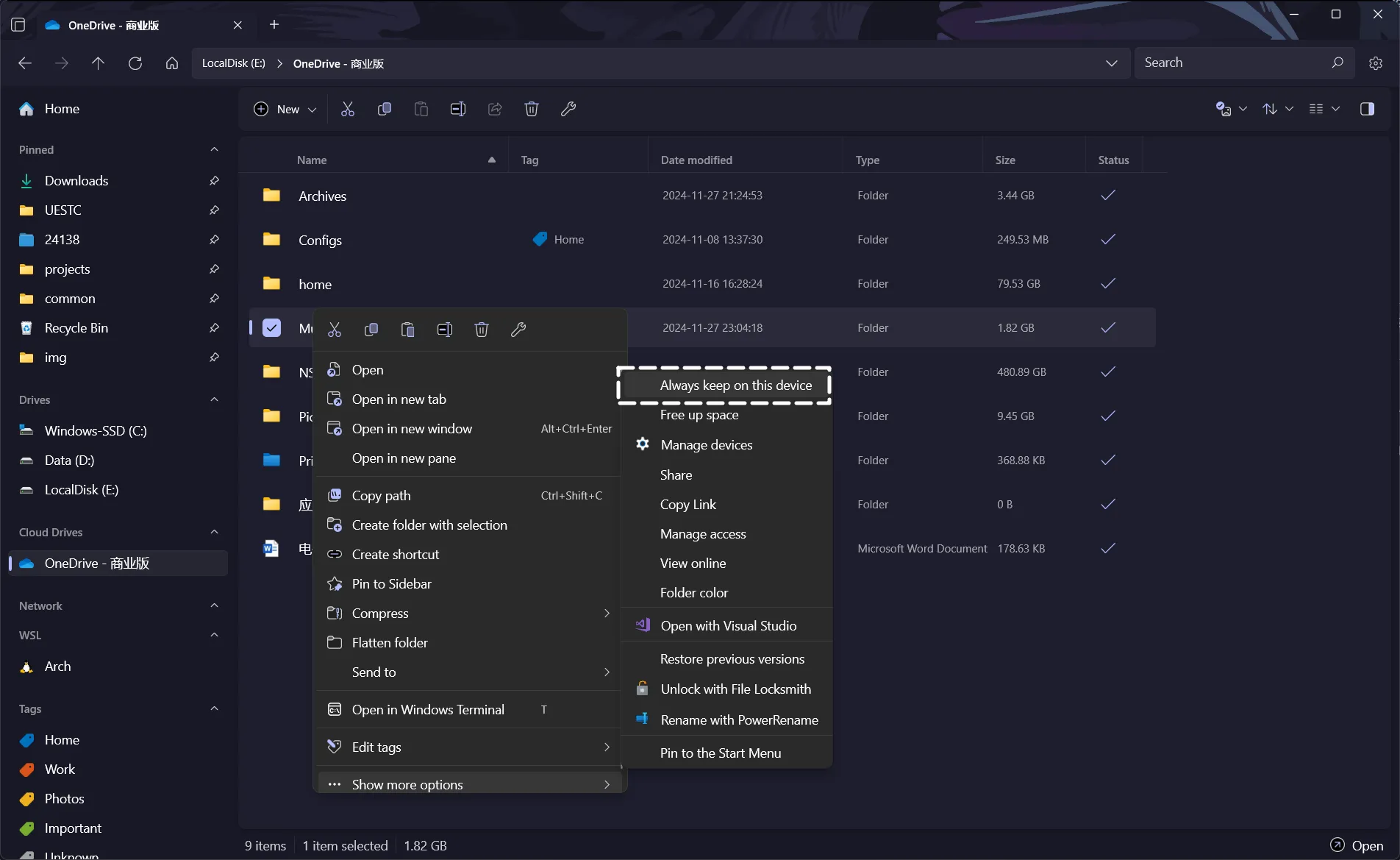
Windows 11’s built-in File Explorer integrates well with OneDrive, and the third-party file manager File also supports it nicely. Mount OneDrive anywhere you like, right-click the Music folder, and choose Always keep on this device. Then you can manage music files locally.