A project I worked on during an internship maintained a Dockerfile, but it was mainly used to start the project. After running the container, the web application would start automatically. That is not a good fit for a development environment: if the project starts automatically when the container runs, debugging in development becomes inconvenient, for example when ports are already occupied.
Setting up the environment locally is also possible. A Python environment is not too hard to configure, and both uv and conda can manage different Python versions. But since someone had already maintained the Dockerfile, Docker was still the more convenient option.
Dev Toolchain: VSCode + SSH(Ubuntu Server) + Docker
Choosing a Docker container as the development environment has several advantages:
- Containerized dependencies decouple services from the host. A Docker container can package code and dependencies into one image, including the operating system, library versions, and configuration files, making development, testing, and deployment environments more consistent.
- Deployment becomes more efficient. When deploying with Docker containers, environments in different containers are isolated from one another, so deployment does not need to worry as much about dependency conflicts between services.
Steps
- Install the Dev Containers extension.
- Create a
.devcontainerfolder in the project root and add the following files:
- project - .devcontainer - devcontainer.json - Dockerfile - ...In devcontainer.json, you can put extension IDs in customizations.vscode.extensions; VS Code will install those extensions after creating the container. You can also configure container properties in this file, such as port forwarding. See the official documentation for details.{ "name": "diagbackend dev", "build": { "dockerfile": "./Dockerfile" }, "customizations": { "vscode": { "settings": { // add your settings here }, "extensions": [ "ms-azuretools.vscode-docker", "ms-vscode-remote.remote-containers", "ms-python.python", "ms-python.debugpy", "ms-python.vscode-pylance" ] } }}
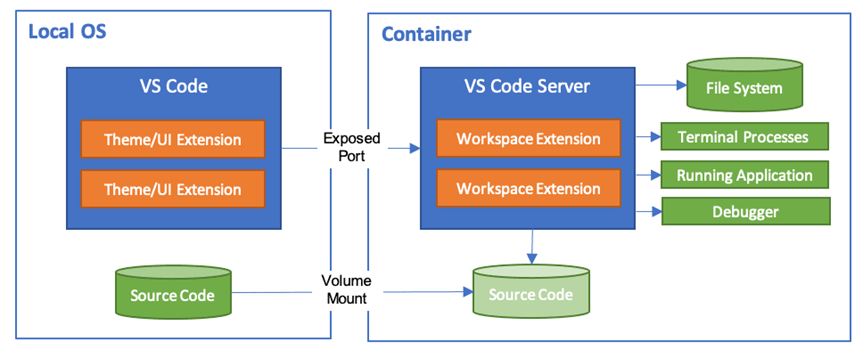
Run the open folder in container command, select the working directory, and press Enter to develop the project inside the container. The Dev Containers extension mounts that directory into the Docker container.
After that, VS Code will automatically build the container. If it fails, check the extension logs and inspect whether the Dockerfile has problems.
Debugging inside the container is as simple as debugging locally. Set breakpoints, press F5, choose Django, and start debugging. If you need a custom startup method, write your own launch.json.
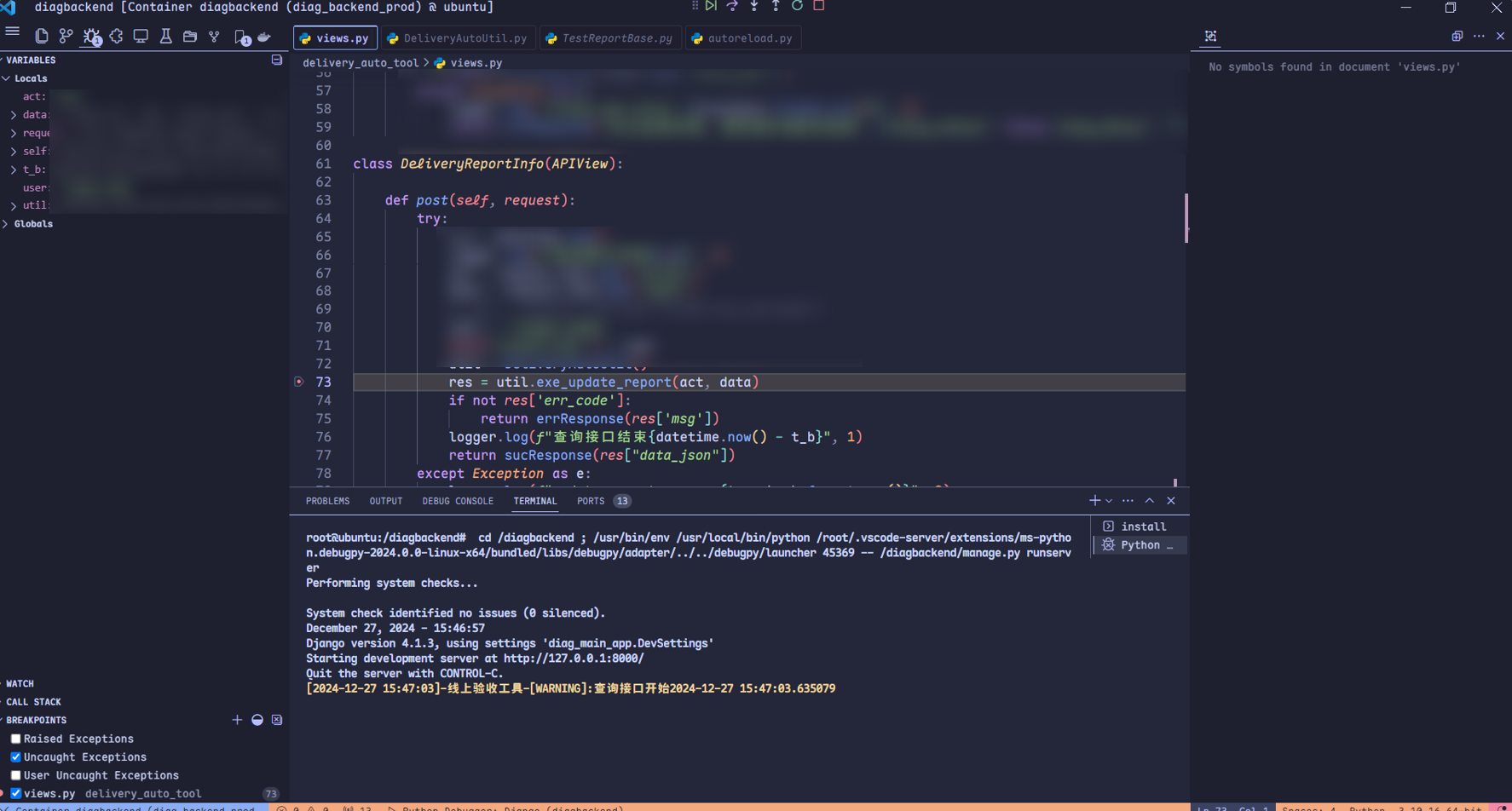
VS Code automatically forwards ports. On Windows, you can install Postman to debug APIs and use 127.0.0.1 as the IP address in the URL.
Ref
The diagram below shows how devcontainer works. The documentation is at https://code.visualstudio.com/docs/devcontainers/containers.