

File System Overview
Functions of a file system
- Manage file storage space effectively;
- Manage file directories;
- Perform file read/write operations;
- Implement file sharing and protection;
- Provide users with an interactive command interface and a programmatic interface.
Definition: the collection of all kinds of files in an operating system, the software that manages them, and the data structures involved in managing files.
A few real-time operating systems have no file system, but the vast majority of operating systems include a file management component.
File Type
1. By purpose
- System files: files that make up system software. Most system files may only be invoked by users, not read, and certainly not modified; some system files are not exposed to users at all.
- User files: files made up of the user’s source code, object files, executables, or data.
- Library files: files consisting of standard subroutines and commonly used routines. Users may invoke them but may not modify them.
2. By the form of the data in the file
- Source files: files made up of source programs and data
.c .cpp .java .py etc - Object files: files consisting of object code that has been compiled by the language’s compiler but not yet linked by the linker. They are binary files
.obj, .o - Executable files: files formed by linking the compiled object code with the linker
.exe,.dllLinux executables usually have no extension, but their file permissions are typically set to executable
3. By access control attributes
Based on access control attributes set by the system administrator or the user
- Execute-only files
x - Read-only files
r - Read-write files
rw
4. By organization and processing method
- Regular files: character files made of ASCII or binary code. Source files created by ordinary users, data files, object code files, the operating system’s own code files, library files, and utility files are all regular files, usually stored on external storage devices.
- Directory files: system files composed of file directory entries, used to manage and implement file system functionality; through directory files, information about other files can be retrieved. Since directory files are also sequences of characters, they support the same file operations as regular files.
- Special files: the various I/O devices in the system. For uniform management, Linux treats all I/O devices as files and exposes them to users through the file interface.
File System Model
Layered structure of the model
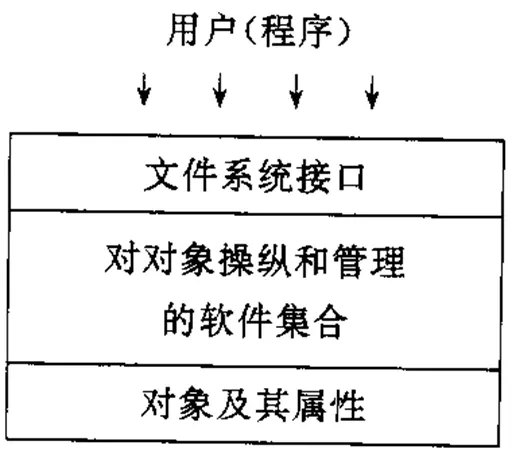
- Objects and their attributes
The objects managed by the file management system are:- Files. They are the direct object of file management.
- Directories. To make it convenient for users to access and retrieve files, the file system must include directories. How directories are organized and managed is key to user convenience and file access speed.
- Disk (tape) storage space. Files and directories necessarily occupy storage space. Managing this space effectively not only improves external storage utilization, it also speeds up file access.
- The software that operates on and manages these objects
This is the core of the file management system. Most file system functionality is implemented at this layer, including:- Management of file storage space
- Management of file directories
- Mechanisms to translate a file’s logical address into a physical address
- Management of file reads and writes
- File sharing and protection
- File system interfaces
To make the file system convenient to use, it usually provides users with two kinds of interface:- Command interface. This is the interface through which users interact with the file system. Users can type commands at a keyboard terminal to obtain file system services.
- Program interface. This is the interface between user programs and the file system. User programs can obtain file system services through system calls.
File operation examples
Users operate on files through the system calls provided by the file system.
- The most basic file operations are: create file, delete file, read file, write file, truncate file, and set the file’s read/write position.
- The “open” and “close” operations: “opening” means the system copies the named file’s attributes (including the file’s physical location on external storage) from external storage into an entry of the in-memory open-file table, and returns that entry’s number (or index) to the user. The “close” system call closes the file, and the OS removes the file’s entry from the open-file table.
- Other file operations: operations on file attributes, renaming a file, changing a file’s owner, querying a file’s status, and so on;
- open: opens a file with a specified access mode; on success it returns a file descriptor.
- creat: opens a file, creating it if it does not exist; on success it returns a file descriptor.
- close: closes the file; all locks the process holds on the file are released.
- read: reads data from the file corresponding to a file descriptor; on success it returns the number of bytes read.
- write: writes data to the file corresponding to a file descriptor; on success it returns the number of bytes written.
Physical Structure of Files
A file is composed of a sequence of records.
Every file has the following two forms of structure:
- Logical structure: the file organization as observed from the user’s point of view
- Physical structure: how the file is stored and organized on external storage
From the logical point of view, a file is made of records;
From the physical point of view, a file is made of data blocks.
The operating system or file management system is responsible for allocating and managing data blocks for files.
How should disk space be divided?
How is space allocated for a newly created file?
How is additional storage added to an existing file?
What data structures record the data blocks a file has been allocated and the free data blocks?
Physical organization of files — storage space management
The main concerns when allocating external storage space for files are: how to use external storage effectively, and how to speed up file access.
The commonly used external storage allocation methods are:
- Continuous allocation
- Linked allocation
- Indexed allocation
Continuous Allocation
Continuous allocation requires that each file be allocated a group of adjacent disk blocks. The addresses of the group define a linear segment of addresses on disk.
The data of the logical file is stored sequentially in physically adjacent data blocks, so the resulting physical file supports sequential access.
The file directory contains one entry per file, recording the address of the file’s first data block and the file’s length.
For sequential files, reading/writing multiple consecutive data blocks performs well.
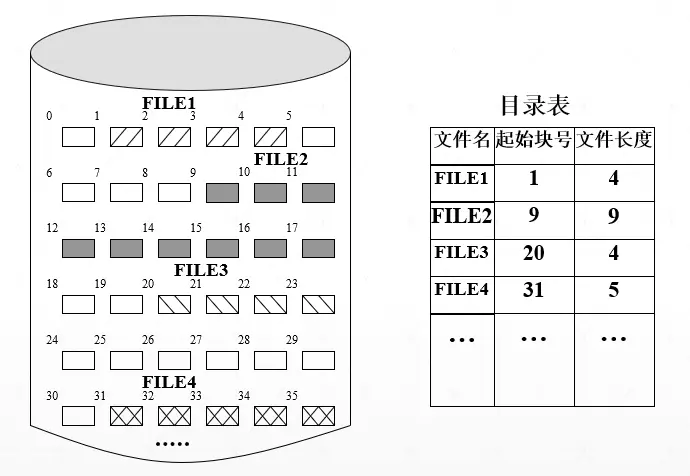
- Sequential access is easy, and any block in the file can be located quickly. For example, if the file’s first data block has number x and you want block y of the file, that block’s location on external storage is x+y-1.
- Sequential access is very effective for large amounts of continuous data (such as video and audio streams). Head movement is short, so efficiency is highest.
- Requires contiguous storage space. This scheme can cause disk fragmentation, severely reducing external storage utilization. One remedy: the system periodically (or occasionally) runs compaction, merging small partitions into large contiguous ones and consolidating the space occupied by files.
- The file’s length must be known in advance. Space utilization is poor, and it does not accommodate dynamic growth of file size.
Linked Allocation
With continuous allocation, file partitions are too large, which hurts effective use of storage space.
When storing a logical file on external storage, one can instead place the file in multiple scattered disk blocks.
Linked file: with linked allocation, a link pointer in each disk block chains the scattered blocks belonging to one file into a linked list; the resulting physical file is called a linked file.
Implicit Linking
With implicit linking, each directory entry in the file directory must contain pointers to the first and last disk blocks of the linked file. Each disk block contains a pointer to the next block.
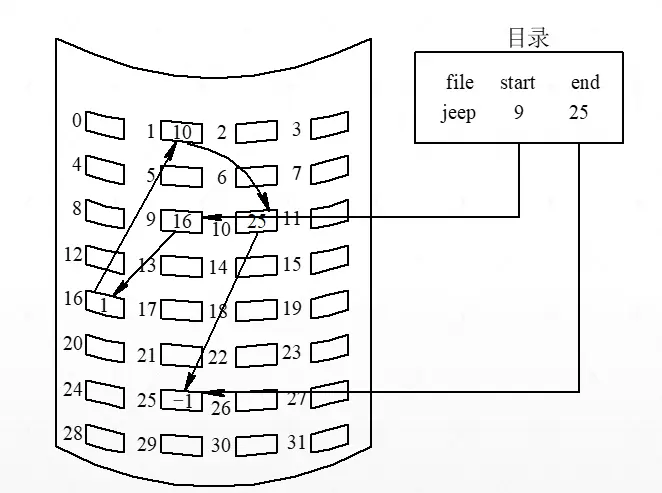
The main problem with implicit linking is that it only suits sequential access; it is extremely inefficient for random access.
To access the i-th block of a file, you must first read the file’s first block, then follow the chain until you reach block i.
To speed up retrieval and reduce the storage used by pointers, several disk blocks can be grouped into a cluster.
For example, a cluster may contain 4 disk blocks; allocation is then done in units of clusters, and each element of a linked file is also a cluster.
This reduces lookup time and pointer overhead, but increases internal fragmentation, and the improvement is quite limited.
Explicit Linking
Here, the pointers that link the physical blocks of files are stored explicitly in a linking table in memory.
The whole disk has just one File Allocation Table (FAT).
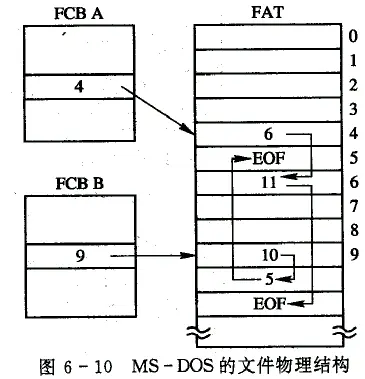
In this table, the number of a file’s first disk block serves as the file’s address and is stored in the “physical address” field of the file’s FCB (File Control Block).
The lookup happens entirely in memory, which not only speeds up retrieval noticeably but also greatly reduces the number of disk accesses.
Because all the disk block numbers allocated to files are kept in this table, it is called the File Allocation Table (FAT).
Linked allocation solves the problems of continuous allocation, but introduces two new ones:
(1) It cannot support efficient direct access. To directly access a large file, many block numbers must first be looked up sequentially in the FAT.
(2) The FAT takes up considerable memory. Since the block numbers a file occupies are scattered randomly through the FAT, the entire FAT must be loaded into memory to guarantee that all of a file’s block numbers can be found.
NTFS (New Technology File System)
NTFS is the file system Microsoft introduced in Windows NT 3.1; it offers more advanced features and performance than FAT. In NTFS, file storage and linking work differently from FAT. NTFS uses a data structure called a B+ tree to store file and directory information. Each file or directory in NTFS has an MFT (Master File Table) record. The MFT record contains all of the file’s information, including its attributes, location, size, and so on. For smaller files, the data may be stored directly in the MFT record. For larger files, the MFT record contains a list of pointers to the file’s data blocks.
In short, FAT and NTFS use different data structures and algorithms to link file data: FAT uses a relatively simple linked list, while NTFS uses the more complex but more efficient B+ tree.
Indexed Allocation
Single-level Indexing
Indexed allocation solves many of the problems of continuous and linked allocation.
Principle: allocate an index block (table) for each file, and record all of the file’s disk block numbers in that index block; the index block is thus an array of many block numbers.
When creating a file, you only need to fill in the pointer to its index block in the directory entry created for it.
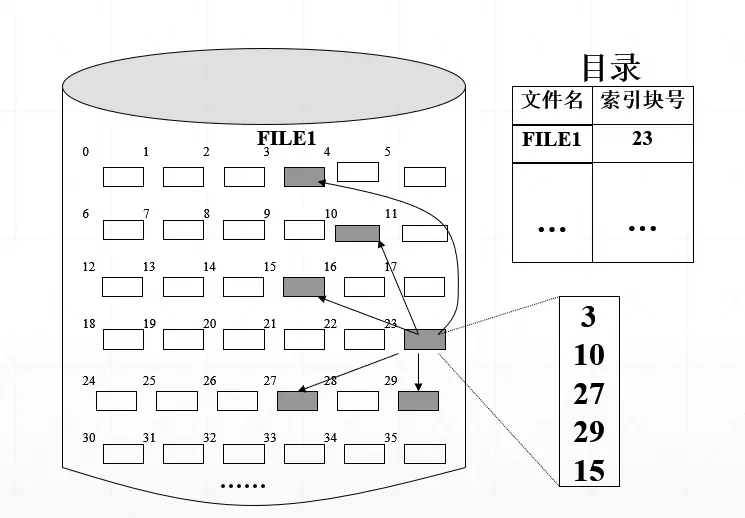
Indexed allocation supports direct access. To read the i-th block of a file, the i-th block number can be found directly in the index block;
Block-based partitioning eliminates external fragmentation.
Large files have many index entries, so one data block may not hold the index of all of a file’s extents. Index blocks can consume considerable external storage. Every file creation requires allocating a dedicated index block to record all of the file’s block numbers. For small files, index block utilization is extremely low.
Two-level Indexing
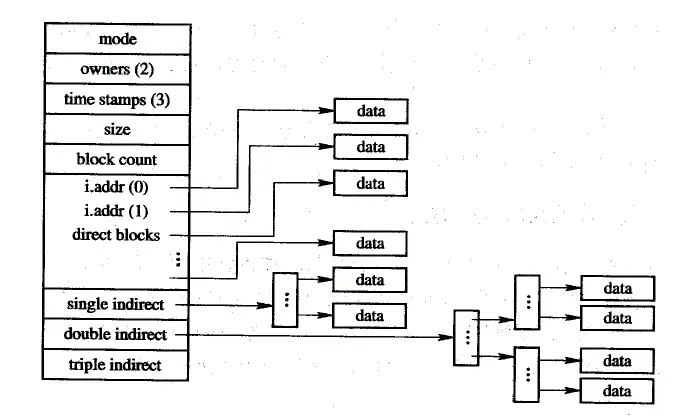
When a file is so large that it has too many first-level index blocks, another level of index should be built over them, forming a two-level indexed allocation.
That is, the system allocates one more index block as the first-level index, and the block numbers of the first, second, … index blocks are filled into this index table.
Management of File Storage Space
One of the important problems file management must solve is how to allocate storage space for newly created files.
The basic allocation unit of storage space is the disk block.
The allocation methods have much in common with memory allocation: both continuous and discrete allocation can be used.
The system must set up appropriate data structures for allocating storage space, and it must provide means to allocate and reclaim that space.
Methods for managing file storage space include:
- Free space table
- Linked free space list
- Bit map
- Grouping linkage
Free Space Table
The free space table method belongs to continuous allocation: each file gets a contiguous block of storage, and the system keeps a free space table for all free areas on external storage. Each free area corresponds to one table entry, which includes the entry number, the first block number of the free area, the number of free blocks in the area, and so on.Entry number Starting block of free area Number of free blocks 1 2 4 2 9 3 3 15 5 4 … …
Steps
- To allocate storage for a file, first scan the free partition table entries in order until the first free partition of suitable size is found.
- First-fit, best-fit, and other allocation algorithms can be used.
- Then allocate that partition to the file and update the free partition table, deleting the corresponding entry.
- When deleting a file frees space, the system reclaims its storage and merges adjacent free partitions.
Swap partitions generally use continuous allocation.
For file systems, when a file is small (1 to 4 disk blocks), continuous allocation is still used, giving the file several adjacent blocks;
When a file is large, discrete allocation is used.
Simple to implement. With best-fit allocation, the free partitions can be sorted by length in ascending order; combined with an efficient search algorithm, a free partition of the required size can be found quickly.
When free partitions are scattered and numerous, the free partition table becomes very large. It requires a lot of memory and slows down table lookups.
Linked Free Space List
Using a dedicated free partition table to register free partitions wastes some storage, does not suit scattered and numerous free partitions, and does not fit block-based storage allocation for linked and indexed files.
The linked free space method chains all free disk areas into a free list. Depending on the basic element used to build the chain, there are two forms:
- Free block list
- Free extent list
Free Extent List
All free space on the disk is chained together in units of disk blocks.
When a user requests storage to create a file, the system starts at the head of the chain and removes an appropriate number of free blocks to allocate to the user.
When a user deletes a file and releases storage, the system appends the reclaimed blocks to the end of the free block chain.
Free Block List
All free disk extents (each extent may contain several disk blocks) are chained together.
Each extent contains a pointer to the next free extent and information indicating the extent’s size (in blocks).
Extent allocation resembles dynamic partition allocation for memory, usually using the first-fit algorithm.
When reclaiming an extent, the reclaimed area must likewise be merged with adjacent free extents.
To speed up free extent lookups, explicit linking can be used: a linked table for free extents is built in memory.
Each partition node contains: starting block number, number of blocks, and a pointer to the next free extent.
Allocating and reclaiming a single disk block is very simple.
After a while, the free partition list may contain too many small partitions, making the storage allocated to files overly scattered.
Deleting a file composed of many scattered small partitions takes a long time, since the reclaimed small partitions must be linked back into the free list.
If a file requests contiguous storage, finding adjacent free partitions takes a long time.
This organization of free space therefore suits non-contiguously stored files.
Bit Map
Binary bits 0 and 1 represent the usage state of storage blocks. For example, 0 means a free partition and 1 means an allocated partition.
Every disk block has a corresponding binary bit; together, the bits for all blocks form a set called the bit map.
Typically m × n bits form the bit map, with m × n equal to the disk’s total block count. The bit map can also be described as a two-dimensional array map[m][n].1 2 3 4 5 6 7 8 9 10 11 1 1 1 0 0 1 1 1 1 0 0 0 2 1 0 1 0 0 1 0 1 0 0 0 3 1 1 0 0 1 1 0 1 0 0 0 4 1 1 0 1 0 1 1 1 0 0 0 … … … … … … … … … … … …
Steps
Requesting blocks
(1) Scan the bit map (m×n) sequentially and find one bit, or a group of bits, with value 0.
(2) Convert the found bit(s) into the corresponding block number(s).
Suppose the 0 bit found is at row i, column j of the bit map; the corresponding block number is computed as:
(3) Update the bit map, setting map[i,j]=1
Reclaiming blocks
(1) Convert the reclaimed block’s number into a row and column in the bit map. The conversion formulas are:
(2) Update the bit map, setting map[i,j] =0
It is easy to find one free partition or a group of contiguous ones. For example, to find 8 adjacent free blocks, you only need to find 8 consecutive bits with value “0” in the bit map.
The bit map occupies Disk Space (bytes) ÷ (Block Size × 8); for small disks the bit map is tiny.
For a 16 GB disk with 512-byte data blocks, the bit map is 4 MB, occupying roughly 8000 disk blocks.
It is hard to load the whole bit map into memory at once. Even with enough memory to hold all or most of it, searching a very large bit map degrades file system performance.
Performance degrades severely especially when disk space is nearly exhausted and few free blocks remain.
Grouping Linkage
Divide all the disk’s free blocks into groups;
Set up a free-block-number stack that holds the block numbers of the currently available group of free blocks and a count of how many free blocks remain in the stack;
Record all the block numbers and the block count of the next group in the first block of the previous group, and so on; the groups thus form a chain;
The last group registers one fewer block number, and instead records an end-of-chain marker for the free block list.
Organization of free blocks
- Free-block-number stack: holds the block numbers of the currently available group of free blocks (at most 100 numbers), plus N, the number of free block numbers still on the stack. Incidentally, N also serves as the stack-top pointer; for example, when N=100 it points to S.free(99). Since the stack is a critical resource that only one process may access at a time, the system guards it with a lock. (Only the stack is kept in memory; everything else is on disk.)
- All the free blocks in the file area are divided into groups, say 100 blocks per group. Suppose the disk has 10,000 blocks of 1 KB each, with blocks 201-7999 used for files (the file area). Then the last group of block numbers in this area is 7901-7999; the second-to-last group is 7801-7900…; the second group is 301-400; and the first group is 201-300, as shown on the right of the figure above.
- Record each group’s total block count N and all of its block numbers into S.free(0)-S.free(99) of the first block of the previous group (grouping from back to front).
- Record the first group’s block count and all of its block numbers into the free-block-number stack, as the free block numbers currently available for allocation.
- The last group has only 99 blocks; their numbers go into S.free(1)-S.free(99) of the previous group’s first block, while S.free(0) stores “0” as the end marker of the free block chain. (Note: the last group has 99 blocks rather than 100, because these are the usable free blocks numbered 1-99; slot 0 holds the end-of-chain marker.)
Allocation and reclamation of free blocks
- When the system needs to allocate blocks for a user’s file, it calls the block allocation procedure. The procedure first checks whether the free-block-number stack is locked; if not, it pops a free block number off the top of the stack, allocates the corresponding block to the user, and moves the stack-top pointer down one slot.
- If that block number is already at the bottom of the stack, i.e. S.free(0), it is the last allocatable block number currently in the stack. Since the block it refers to records the next group of available block numbers, the disk read procedure must be called to read that block’s contents into the stack as the new stack contents, and the block that was at the old stack bottom is then allocated (its useful data has already been read into the stack). A buffer is then allocated for that block. Finally, the free block count in the stack is decremented by 1 and the procedure returns.
- To reclaim a free block, the system calls the block reclamation procedure. It writes the reclaimed block’s number at the top of the free-block-number stack and increments the free block count by 1. When the stack holds 100 block numbers, it is full; the 100 numbers in the stack are then written into the newly reclaimed block, and that block’s number becomes the new stack bottom.
File Directory
File directory management
File Control Block (FCB): the data structure that describes and controls a file. It includes:
- Basic information: file name, file type, etc.;
- Address information: volume (the device storing the file), starting address (starting physical address), file length (in bytes, words, or blocks), etc.;
- Access control information: file owner, access information (user name and password, etc.), permitted operations, etc.;
- Usage information: creation time, creator identity, current status, last modification time, last access time, etc.
- …
File directory: an ordered collection of file control blocks.
The requirements for directory management are:
- Access by name.
- Fast directory lookups.
- File sharing.
- Allowing duplicate file names.
Two ways to organize directory entries:
- The FCB stores the entire directory content
- Store only part of the directory information, such as the file name and an index node pointer, keeping the rest in the index node (i Node). When the file is opened, the index node is read from disk into memory.
The iNode (index node) is an important concept in the file systems of Unix and Unix-like operating systems. Every file or directory is represented by an iNode. The iNode contains important information about the file system object (regular file, directory, or other type), including:
- File size
- File owner and group
- File permissions (read, write, execute)
- Timestamps of file creation, access, and modification
- Locations of the file’s data blocks
The iNode does not contain the file name or path; that information is maintained by directory files, which map file names to iNodes. This design enables some sophisticated file system features, such as hard links and soft links.
Note that every iNode has a unique iNode number, which uniquely identifies a file or directory within the file system.
Directory files and operations
Directory file: a file directory is itself treated as a file, i.e. a directory file — a special file made of the directory entries of multiple files. Directory operations include
- Search directory
- Create directory
- Delete directory
- List directory
- Modify directory
Directory structure
Single-level directory structure
All files of all users are kept in one directory table, with each file’s directory entry occupying one table entry.
Simple, easy to implement, and achieves the basic function of directory management — access by name.
Slow lookup, no duplicate names allowed, and file sharing is inconvenient.
dir_entry_1->file1dir_entry_1->file2...dir_entry_n->filenTwo-level directory structure
Master File Directory (MFD) and User File Directory (UFD).
Solves the duplicate-name problem to some degree, improves directory lookup efficiency, and enables simple file sharing.
Inconvenient for logically classifying a user’s files; duplicate names, sharing, and lookup efficiency still need further solutions.
MainFolder│├── User1│ ││ ├── file1│ ││ └── file2│├── User2│ ││ ├── file1│ ││ └── file2│└── User3 │ ├── file1 │ └── file2Hierarchical directory structure
Multi-level / tree-structured directories
- Directory structure: the multi-level directory structure is also called the tree directory structure. The master directory is called the root directory, data files are the leaves, and all other directories are interior nodes of the tree.
- Path name: starting from the root of the tree (the master directory), all directory file names and the data file name, joined in order with “/”, form the data file’s path name.
Every file in the system has a unique path name. - Current directory: each process is given a “current directory”, also called the “working directory”; the process accesses files relative to the current directory.
- Clear hierarchy, convenient for management and protection
- Facilitates file classification
- Solves the duplicate-name problem
- Speeds up file lookups
- Allows access-permission control
Looking up a file means checking each level of the path name in turn; since every directory file lives on external storage, the repeated disk accesses hurt speed.
Directory lookup techniques
There are two ways to search directories: linear search and hashing.
- Linear search
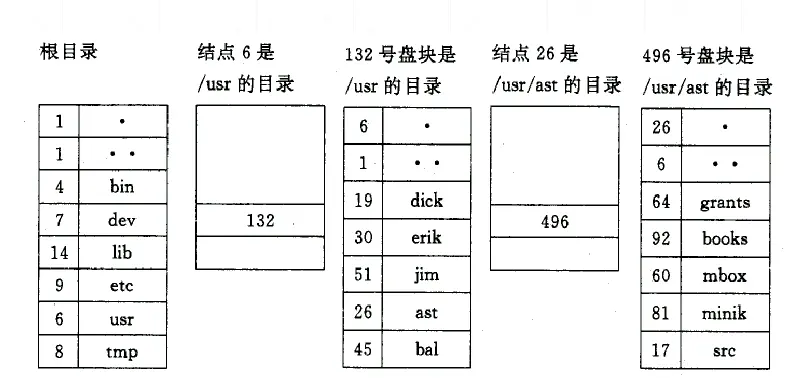
Linear search is also called sequential search.- In a single-level directory, the file name provided by the user is used to find the named file’s directory entry by sequential search.
- In a tree directory, the user provides a path name composed of multiple file name components, so a multi-level directory search is required.
- Hashing
- Hashing: a hash index file directory is built; the system transforms the user-supplied file name into an index into the file directory, then uses that index to look up the directory.
- Hashing dramatically speeds up retrieval.
- When a file name contains wildcards like “*” or “?”, the system cannot use hashing to search the directory, so linear search must be used instead.
- When converting file names, different names may map to the same hash value — a hash collision.
- Steps
- When looking up the directory by hash value, if the corresponding directory entry is empty, the specified file does not exist in the system.
- If the file name in the entry matches the specified name, this entry is the one for the file we are looking for, and the file’s physical address can be obtained from it.
- If the file name in the corresponding entry does not match the specified name, a hash collision has occurred.
- Resolving hash collisions: add a constant to the hash value (the constant must be coprime with the directory table length) to form a new index, then go back to the first step and search again.
Using a step size coprime with the hash table size ensures that after enough steps, every slot in the table can be probed. Because the least common multiple of two coprime numbers is their product, repeatedly adding the step to the original hash value covers all positions in the table after a number of steps equal to the table size.
File Sharing and Access Control
Effective control of file sharing involves two aspects:
- Simultaneous Access
- Access Rights
Controlling simultaneous access
- Allow multiple users to read a file’s contents at the same time, but not to modify it simultaneously, or to read and modify it simultaneously.
- When one sharing user modifies the file, the entire file can be treated as a critical resource: the whole file is locked and other sharing users may not read or write it at the same time.
- Alternatively, only a specified record may be locked, letting other sharing users read/write the file’s other records. The latter has better concurrency.
- Controlling simultaneous access to files involves process synchronization and mutual exclusion.
Controlling access rights
Ensure that authorized users access files in permitted ways, including:
- Execution — the user may load and execute a program, but may not copy its contents.
- Reading — the user may read the file’s contents, including copying and executing the file. Some systems strictly separate viewing from copying, so a file can be controlled to be viewable (displayable) only, not copyable.
- Appending — the user may add data to the file, usually only at the end; the existing contents may not be modified or deleted. For example, a supermarket cashier can only append newly settled transactions to the file, not modify or delete existing data.
- Updating — the user may modify, delete, and add file contents, including creating the file, rewriting all or part of its contents, and moving all or part of its data.
- Changing protection — usually only the file owner may change other sharing users’ access rights to the file. Some systems allow the owner to grant the right to change permissions to another user, but the scope of what that user may change must be restricted.
- Deletion — the user may delete the file.
Implementing file sharing
In a tree-structured directory, when two (or more) users want to share a subdirectory or file, the shared file or subdirectory must be linked into both (or all) users’ directories so it can be found conveniently. At that point the file system’s directory structure is no longer a tree, but a directed acyclic graph.
The essence of file sharing is being able to open the same file from different places.
The first step in opening a file is finding its directory entry and reading the file’s starting address on external storage.
Ways to implement file sharing:
- Linked directory entries
- Index nodes
- Symbolic links, etc.
File sharing via linked directory entries
A link pointer is placed in a file’s directory entry, pointing to the shared file’s directory entry.
- When accessing the file, follow the link pointer to the shared file’s directory entry, read the file’s starting location and other information from it, and operate on the file.
- Whenever a user (process) shares the file, the “share count” in the shared file’s directory entry is incremented; when a user stops sharing and removes the link pointer, the count is decremented.
- The shared file may be deleted only when its user count is 1.
/root│├── /dir1│ ││ ├── file1 (link pointer-> /root/dirShared/file)│├── /dir2│ ││ ├── file2 (link pointer-> /root/dirShared/file)│└── /dirShared │ └── fileFile sharing via index nodes — Hard Link
Also known as a hard link.
A hard link connects files through index nodes. In Linux file systems, every file stored on a disk partition, whatever its type, is assigned a number called the inode index. In Linux, multiple file names can point to the same index node; such a connection is generally a hard link. Hard links let one file have multiple valid path names, so users can create hard links to important files to guard against accidental deletion. As explained above, this works because the corresponding index node has more than one link. Deleting one link affects neither the index node itself nor the other links; only when the last link is deleted are the file’s data blocks and the directory link released. In other words, a file is truly deleted only when all its hard-link files have been deleted.
The file’s physical address and other attributes are no longer kept in the directory entry, but in the index node. The file directory contains only the file name and a pointer to the corresponding index node.
- When any user appends to or modifies the file, the resulting changes to the node’s contents (for example, new block numbers and a new file length) are visible to all other users, so the file can be shared with them.
- In UNIX, a directory entry contains only the file name and a pointer to the index node; the file’s physical address and other metadata live in the iNode.
- A file can be shared by sharing its iNode: when a user wants to share a file, they create a new entry in their own directory, name the shared file (the original name may be reused), and point the index node pointer at the shared file’s index node.
/root│├── /dir1│ ││ ├── file1 (iNode pointer-> iNode#123)│ ││ └── file3 (iNode pointer-> iNode#124)│├── /dir2│ ││ ├── file2 (iNode pointer-> iNode#123)│ ││ └── file4 (iNode pointer-> iNode#125)│└── iNode Table │ ├── iNode#123 (physical address, file attributes, share count: 2) │ ├── iNode#124 (physical address, file attributes, share count: 1) │ ├── iNode#125 (physical address, file attributes, share count: 1) │ └── ...The index node should also hold a link count, used to record the number of user directory entries linked to this index node (i.e. to this file).
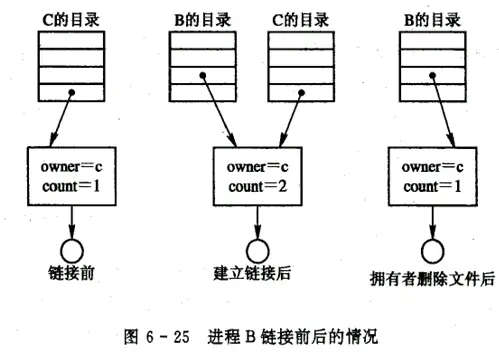
- When user C creates a new file, C becomes its owner and count is set to 1.
- When user B wants to share the file, an entry is added to B’s directory with a pointer to the file’s index node; the owner is still C, and count=2.
- If user C no longer needs the file, can it be deleted?
Only the hard link can be deleted, not the actual contents; only after all hard links are deleted can the contents and the index node be removed.
File sharing via symbolic links — Symbolic Link
To let B share one of C’s files F, the system can create a new file of type LINK, also named F, and place it in B’s directory, linking B’s directory to file F; the new file contains only the path name of the target file F. This linking method is called a symbolic link.
The path name in the new file is treated only as a symbolic link. When B accesses the linked file F and is about to read the LINK-type file, the OS intercepts the access and reads the target file using the path name inside, thereby letting user B share file F.
With symbolic links, only the file owner holds the pointer to the file’s index node; the other users sharing the file have only its path name, not a pointer to its index node.
Can link to files on any machine. Each new link adds a file name, so each user shares the file under their own name.
Backups may produce multiple copies.
A symbolic link is also called a soft link. A soft link file resembles a Windows shortcut. It is actually a special file: in a symbolic link, the file is a text file containing the location of another file.$ touch file$ ln file hard_link_f1 # hard link$ ln -s file sym_link_f1 # soft link$ ls -li# Output below: the hard link shares the same inode, count=2; the soft link has a different inode, count=1total 0122779 -rw-r--r-- 2 gjx gjx 0 May 22 15:03 file122779 -rw-r--r-- 2 gjx gjx 0 May 22 15:03 hard_link_f1122781 lrwxrwxrwx 1 gjx gjx 4 May 22 15:04 sym_link_f1 - >fileProperty Hard link Soft link Cross-filesystem ❌ Not supported ✅ Supported Linking directories ❌ Not supported ✅ Supported After original deleted Link still accesses file contents Link becomes invalid (dangling) File modification All hard links reflect changes Changes through the link apply to the original File attributes Identical to the original file Has its own attributes (e.g. permissions) File size Same as the original file Equal to the length of the path string inode number Same as the original file Different from the original file
File sharing via URL
The Uniform Resource Locator (URL) is a method used on the Internet to link hypertext files.
It can link to local files on the same computer, or to remote files on any host on the Internet.
A complete URL includes the access method (protocol), the host domain name where the file resides, the directory path, and the file name. For examplefile:///C:/Users/YourName/Documents/file.txthttp://www.uestc.edu.cn/templates/index2k3/index.html
File protection
Different objects permit different operations. For example, files can be read, written, and executed, while semaphores only support wait() and signal() operations.
The system therefore defines, for every object, a set of operations processes are allowed to perform; any operation on an object must conform to that set, preventing unauthorized processes from accessing the object.